
Updated Sep 24, 2026
Time Blocking in Notion: A Daily Planner Setup That Sticks
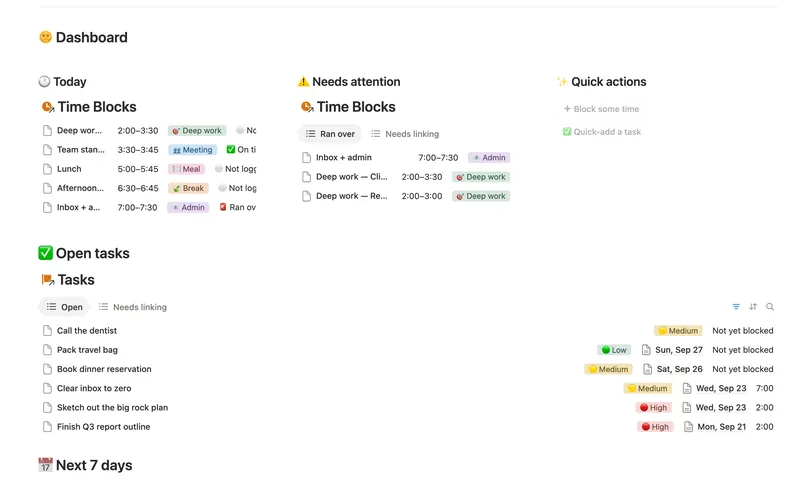
Time blocking means giving every task a specific start and end time instead of just a due date. In Notion, that means three linked databases (Days, Time Blocks and Tasks) where each block's own Start time rolls up onto every task scheduled inside it, so you can see what's happening and when without opening a second page.
What is time blocking?
Time blocking assigns fixed slots of time to specific work, instead of leaving a flat, open-ended list you dip into whenever. A block might be 9:00–10:30 for deep work, 10:30–10:45 for standup, 12:00–12:45 for lunch. The task doesn't just exist on a list somewhere; it has a place on the clock, which forces the question of whether your day actually has room for it.
What's the difference between time blocking and a to-do list?
A to-do list is a flat set of things to do with no promise about when any of them happen, which is how it's normal to have twelve open items and no real sense of which three are realistic today. Time blocking forces that question earlier, by making you place each task somewhere on the clock before the day starts. If something doesn't fit before 6 p.m., you find that out at 9 a.m. while there's still time to adjust, not at 6 p.m. when there isn't.
How do you set up time blocking in Notion?
- Create a Days database — one row per day, with its own Date property.
- Create a Time Blocks database with a Start property, an End property (both dates with time turned on), a Category select (Deep work, Meeting, Admin, Break, and so on), and a relation back to Days.
- Create or reuse a Tasks database, and relate each task to a Day and, once you know exactly when you'll do it, to a specific Block.
- Each morning, block your day: give each block a Start, an End and a Category, then link it to today's Day.
- Log an Actual finish time on a block once you're through with it. That single field is what lets the system tell you whether you ran over, rather than just whether you eventually finished.
Can Notion tell me automatically if I ran over on a time block?
Yes, with a formula, not a manual checkbox you have to remember to tick. Here's the actual Status formula from the Daily Planner & Time Blocks template, in Notion's formula 2.0 syntax:
if(empty(prop("Actual finish")) or empty(prop("End")), "⚪ Not logged",
   if(dateBetween(prop("Actual finish"), prop("End"), "minutes") > 0, "🚨 Ran over", "✅ On time"))
dateBetween returns a positive number when its first date is later than its second, so this is comparing when you actually finished against when the block was supposed to end — and it only flags "ran over" once you've logged a real Actual finish; an empty block never guesses. The Window property that shows a readable time range is built the same way, formatting Start and End without retyping either:
formatDate(prop("Start"), "H:mm") + "–" + formatDate(prop("End"), "H:mm")Does every task need its own time block?
No. Tag a task to a Day without a Block and it just sits on that day's list, unscheduled — a separate view (something like "Needs a time") can catch anything you've put on a day but never actually blocked. Once you do link a task to a specific block, that block's Start rolls straight up onto the task through the relation, so a "Scheduled at" column can tell you when something's actually happening without opening the block itself:
if(empty(prop("Block start")), "Not yet blocked", formatDate(prop("Block start"), "H:mm"))What if a strict grid doesn't work for you?
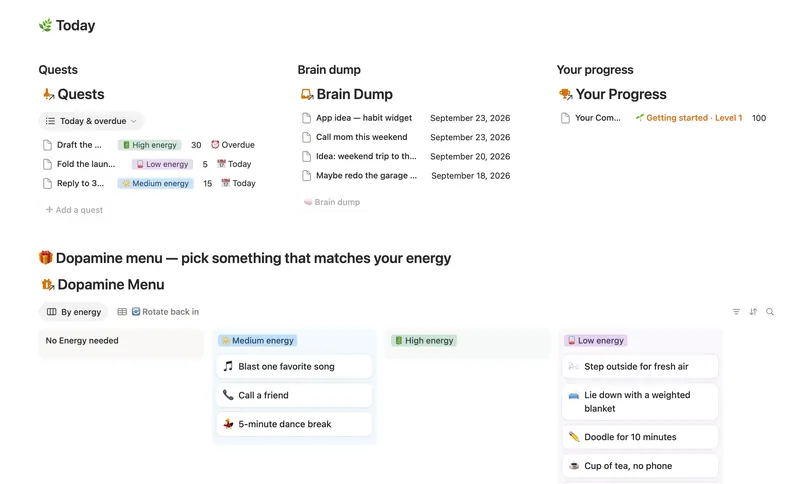
Time blocking assumes you can estimate fairly well how long something takes, and that interruptions are rare enough to plan around. Neither is true every day, and on the days it isn't, a block that says 9:00–10:30 and doesn't move can turn into one more thing to feel behind on instead of a help. Pairing a Start/End grid with something looser (a Quest list tagged by energy level instead of the clock, the way the ADHD Command Center handles it) gives you a fallback for the days a strict schedule was never going to survive contact with.
Does Notion have a built-in daily planner with time slots?
Not out of the box. A fresh Notion workspace gives you the Date property (with an optional time toggle) and a Calendar view, but there's no default time-blocking layer already wired up — no Start/End pair that compares itself to what actually happened. That layer has to be built from a couple of linked databases and a formula or two, which is exactly what the Daily Planner & Time Blocks template does, pre-built, so it's ready the moment you duplicate it.
What's a realistic first day of time blocking supposed to look like?
Don't block every minute. Block the two or three things that actually matter (one deep-work block, any fixed meetings, maybe a lunch) and leave the rest of the day open. A calendar that's 100% blocked from the first morning is usually abandoned by Thursday; the point isn't to schedule everything, it's to make sure the two or three things that matter most have a real slot that competes with everything else trying to fill your day.
Related: the Daily Planner & Time Blocks template is built exactly the way this guide describes. Pair it with the Weekly Planner for the bigger picture beyond a single day, or the ADHD Command Center if a strict Start/End grid feels like too much structure on a harder day. All three are part of the full 50-template bundle — $47 once, works on Notion's Free plan, lifetime updates.
Related templates
- 02 Daily Planner & Time Blocks Block your day into real Start/End times, keep tasks tied to the hour you meant to do them, and see — gently, never guiltily — whether today actually went the way you planned it. 3 db · 6 formulas · 2 buttons
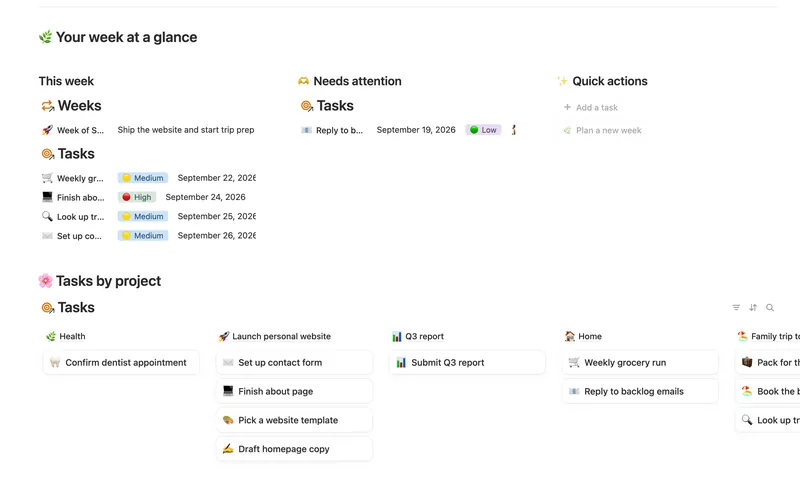
- 01 Weekly Planner Plan your week around what actually matters, connect every task to the project or area it belongs to, and close each week with a gentle review — progress that computes itself, no guilt, no spreadsheet. 3 db · 8 formulas · 2 buttons
- 03 ADHD Command Center Corral every quest, stray thought and dopamine hit into one gentle system — one that tracks your XP and shows up for you on the days that don't go to plan, not just the good ones. 5 db · 12 formulas · 3 buttons
§ The Bundle
Build it once, or start from a template
50 Notion templates, $197 value, $47 once.
One-time payment · Works on Notion Free · Instant Library access