
Updated Sep 24, 2026
Newsletter Planner Notion Template
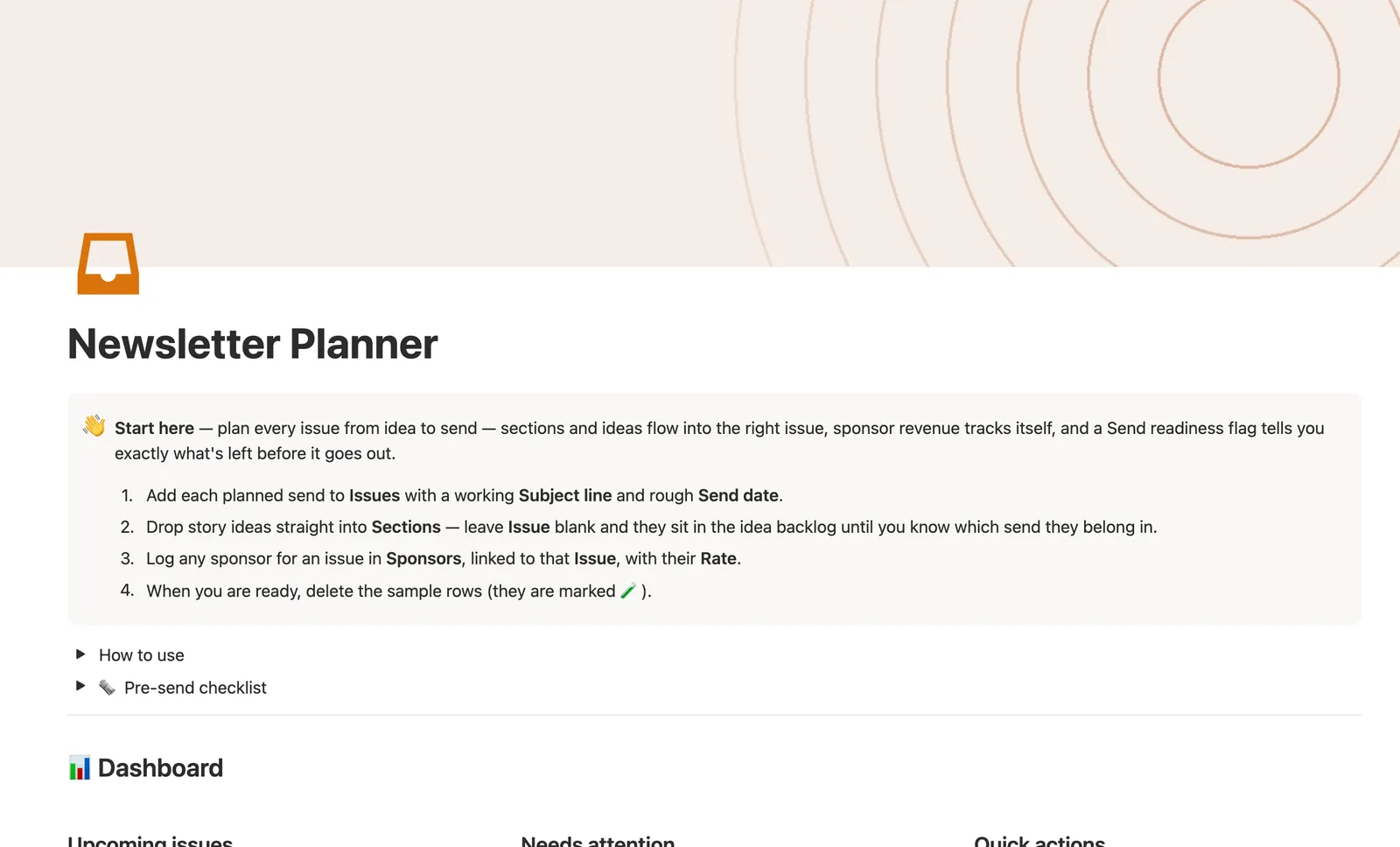
This Notion newsletter planner runs every issue from idea to send. Sections double as an idea backlog: link one to an Issue and it becomes that issue's content. Sponsor revenue rolls up automatically, and a Send readiness flag checks your subject line, send date, and sections before you hit send.
One-time payment · Works on Notion Free · Instant Library access
Who it's for
Who it's for
- Newsletter writers juggling more ideas than issues to put them in
- Anyone running paid sponsor spots inside their newsletter
- Writers who want to know an issue is actually ready before scheduling it
- Solo writers tracking open rate and click rate issue over issue
What's inside
What's inside
Sections double as your idea backlog
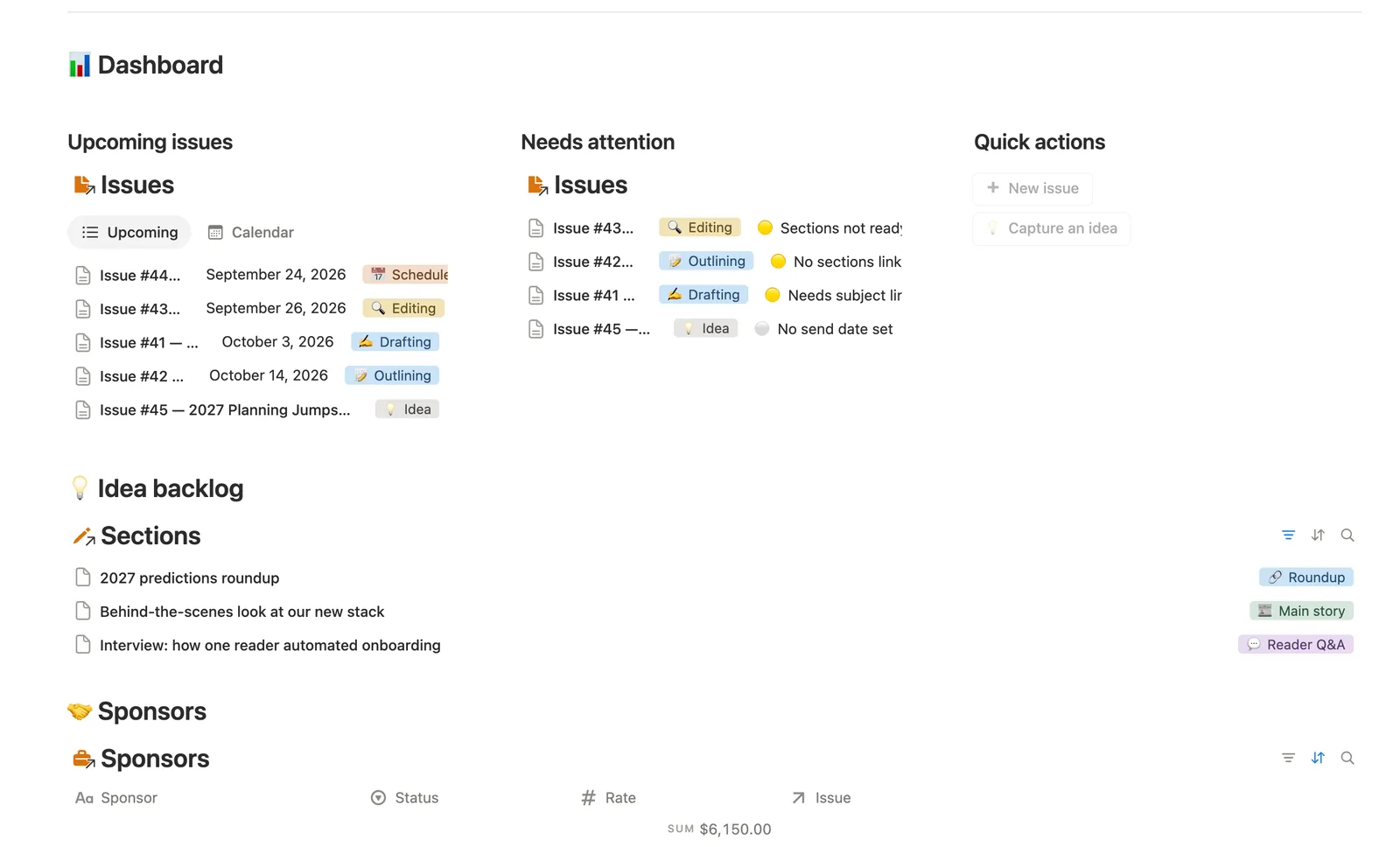
A Section with no Issue linked sits in the idea backlog. Link it to an Issue and it becomes that issue's own content — one database covers both jobs.
Send readiness, computed not guessed
Send readiness checks Send date, Subject line, and how many linked Sections are actually marked Ready (via Sections ready %) before it ever reads Ready to schedule.
Sponsor revenue that adds itself up
Sponsor revenue on each Issue sums every linked Sponsors row's Rate. Add a sponsor once, linked to the right issue, and it shows up there automatically.
Real open and click rates
Log Recipients, Opens, and Clicks after sending, and Open rate and Click rate compute themselves from those three numbers, guarded against a divide-by-zero when Recipients is still blank.
A named pipeline, not a generic board
Issues move through Idea, Outlining, Drafting, Editing, Scheduled, and Sent, with hand-picked colors so the Pipeline board actually reads at a glance.
A dashboard that separates today's work from the backlog
Upcoming issues, Needs attention, and the Idea backlog sit side by side, so a stalled issue and an unused idea are never in the same list.
How it works
How it works
Sections is the hinge: leave its Issue relation blank and a row sits in the idea backlog; link it to an Issue and it becomes that issue's own content, rolling up into Section count and Sections ready % on that Issue. Sponsors relates to Issues too — every linked Sponsor's Rate sums into that Issue's Sponsor revenue. Send readiness is the formula that reads all of it back: Send date, Subject line, and Sections ready % together, never a status dragged there by hand.
Spec
- Databases
- 3
- Two-way relations
- 2
- Formulas
- 6
- Rollups
- 4
- Views
- 19
- One-click buttons
- 2
- Database templates
- 4
- Sample rows
- 23
- Databases Issues, Sections, Sponsors
- Entity pages Issues
- Buttons ➕ New issue, 💡 Capture an idea
How to use
- 01
A Section with no Issue link is an idea sitting in the backlog; link it to an Issue and it becomes that issue's own section — one database covers both the idea bank and the send's content, no separate lists to keep in sync.
- 02
Send readiness on each Issue is computed, never typed: it checks Send date, Subject line, then how many linked Sections are actually 🟢 Ready (via Sections ready %) — it only turns 🟢 once everything really is in place, and reads ✅ Sent once you've moved Status there.
- 03
Sponsor revenue on an Issue is the sum of every linked Sponsors row's Rate — add a sponsor once, linked to the right issue, and it shows up on that issue automatically.
- 04
Open rate / Click rate come from whatever Recipients/Opens/Clicks you type in after sending — pull those three numbers from your email platform's own analytics; nothing here connects to it live.
- 05
Open an Issue's own page for just that issue's Sections and Sponsors — no digging through System databases.
- 06
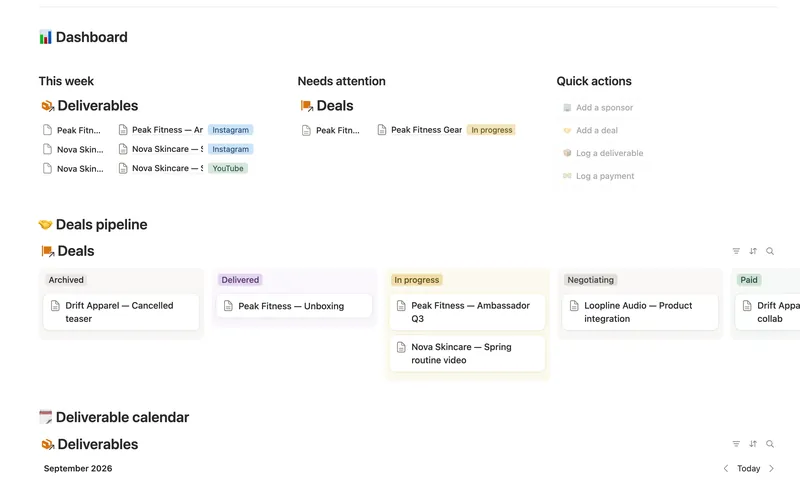
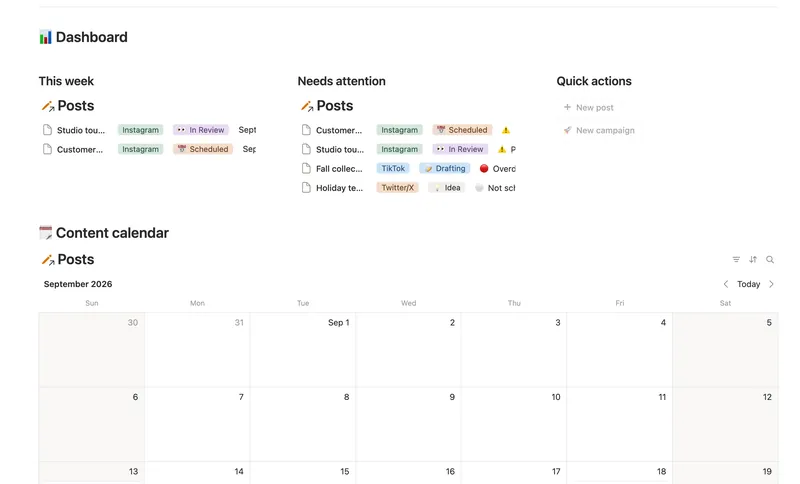
Pair this with Content Calendar to plan the social posts promoting each issue, and Brand Deals & Sponsorships if you run sponsor deals across more than just the newsletter.
Setup
Setup
- 01
Duplicate the Newsletter Planner template into your workspace.
- 02
Add each planned send to Issues with a working Subject line and rough Send date.
- 03
Drop story ideas straight into Sections — leave Issue blank and they sit in the backlog until you know which send they belong in.
- 04
Log any sponsor for an issue in Sponsors, linked to that Issue, with their Rate.
- 05
Delete the sample rows, marked 🧪, once you're set up.
Compared
| This template | Spreadsheet | |
|---|---|---|
| Send readiness check | Computed from date, subject, sections | Manual review |
| Idea backlog | Same database as issue content | Separate tab |
| Sponsor revenue per issue | Auto rollup from linked sponsors | Manual total |
| Open/click rate | Computed once you log the numbers | Manual formula, easy to break |
§ FAQ
FAQ
Does Notion have a newsletter planner template?
Yes — this one moves every issue through a named pipeline from Idea to Sent, with Sections doubling as both your idea backlog and each issue's actual content, plus a Send readiness flag that checks it's genuinely ready before you schedule it.
Can Notion track sponsor revenue per newsletter issue?
Yes. Log each sponsor in the Sponsors database with a Rate, link it to the Issue it's running in, and Sponsor revenue sums automatically on that issue — no manual addition.
How do I plan newsletter issues in Notion?
Add the send to Issues with a Subject line and Send date, then link Sections to it as you write. Send readiness tells you exactly what's still missing before you schedule it.
Does this work on Notion's free plan?
Yes — the whole template, including the Send readiness formula and sponsor rollups, runs on Notion's Free plan.
What happens to ideas I'm not ready to use yet?
They stay in the Sections idea backlog. Just leave the Issue field blank. Nothing is lost or hidden; the backlog is its own filtered view of the same database.
Does it track open rates automatically?
No — Notion can't read your email platform's analytics live. You type Recipients, Opens, and Clicks in after sending, and Open rate and Click rate compute themselves from those three numbers.
More from Creator
- 41 Brand Deals & Sponsorships Track every sponsor relationship from first outreach through signed deal, posted deliverable and paid invoice — with Received, Outstanding and two computed status badges rolling up automatically across a Sponsor → Deal → Deliverable → Payment chain, never typed by hand. 4 db · 21 formulas · 4 buttons
- 37 Content Calendar Plan and publish across every platform from one staged pipeline — with a live calendar, a Timing flag that catches a slipping post before it's late, and Campaigns/Pillars that show whether a push is on track and whether your content mix is actually balanced. 3 db · 8 formulas · 2 buttons
- 40 Content Idea Bank & Repurposing Capture every content idea before you forget it, score it so you always know what's worth making next, and turn one piece into several — without losing track of what's already been repurposed. 3 db · 9 formulas · 2 buttons
§ The Bundle
Get the whole Bundle
Newsletter Planner plus 49 more templates, one payment.
One-time payment · Works on Notion Free · Instant Library access