
Updated Sep 27, 2026
Notion vs. Google Sheets for Budgeting: Which One Should You Use?
Google Sheets wins at heavy math: pivot tables, a dozen-plus chart types, and bank-import add-ons Notion doesn't have. Notion wins at linked records: tag one transaction and its category, account and savings goal all update without writing a second formula. Most people building a budget from nothing get further in Notion; anyone doing real financial analysis keeps Sheets open too.
Notion vs. Google Sheets: how a grid and a database actually differ
Google Sheets is one big grid: every number lives in a cell, and formulas like SUMIF or VLOOKUP reference other cells by address. Notion is a set of databases (Transactions, Envelopes, Accounts, Budget Months, in the Zero-Based Budget template's own schema) where each row is a real record connected to other records by a relation, not a copy of a number. Tag a Transaction with a Category or Envelope once, and every formula that reads it updates on its own; in a spreadsheet, the same job usually means a lookup formula copied down a column, or a pivot table rebuilt by hand.
That's the real Notion vs. spreadsheet divide: a spreadsheet organizes numbers, a database organizes relationships between records. Neither is more capable outright — a grid is faster for arbitrary math, a set of linked databases is faster to keep consistent as data grows.
Where Google Sheets wins for budgeting
Sheets earns its reputation for a reason. Pivot tables reorganize any column into a live summary: total spend by month and category, cross-tabbed, in a few clicks and no formula required. More than a dozen chart types are built in (line, combo, stacked column, area, scatter, histogram, waterfall) at no extra cost beyond a Google account. Its add-on marketplace also includes third-party connectors that pull transactions straight from a bank account, which is something no Notion template here does natively; every Notion budget in this collection is filled in by hand, transaction by transaction.
If your budgeting habit already means dragging a bank CSV into a spreadsheet and rebuilding a pivot table every month, Sheets already does that job well. That's not a reason to avoid Notion, but it's the honest tradeoff.
Where Notion wins for budgeting
Notion's advantage shows up after you log a transaction. Tag it with a Category and an Account, and it doesn't just sit in a row: it feeds that Category's monthly total, that Account's running balance, and, in an envelope-style setup, that Envelope's Available balance, all through relations instead of a formula you wrote once and now maintain across three tabs. The Zero-Based Budget template's Available balance is exactly this:
prop("Assigned") + prop("Carryover") - prop("Spent")Spent itself reads straight off linked Transactions, filtered to the current calendar month, with no manual reset.
It's also built for entering data on your phone. Logging a transaction in Notion's app opens as a short set of fields to fill in (Amount, Category, Account, Date), not a spreadsheet grid you scroll and tap into the right cell on. And a Notion budget sits next to whatever else is in the workspace: tasks, a journal, a goals page, rather than a separate file you have to remember to open.
Notion vs. Excel for budgeting
Excel does most of what Sheets does: pivot tables, a deep chart library, a mature formula language. What it isn't is free the way Sheets and Notion are. As of September 2026, a Microsoft 365 subscription for one person starts at $99.99 a year, or a one-time Office Home 2024 license runs $179.99. If cost matters more than Excel's specific formula set, array formulas or macros, Sheets gets you comparable spreadsheet power for nothing beyond a Google account.
Notion or Google Sheets for your finances: a decision table
| If you want | Pick |
|---|---|
| Pivot tables and a large, free chart library | Google Sheets |
| A transaction that updates its category, account and goal on its own | Notion |
| A bank-import add-on instead of manual entry | Google Sheets |
| Fast entry from your phone | Notion |
| One workspace that also holds your tasks and goals | Notion |
| A system you already built and don't want to redo | Whichever you have |
| Multi-year trend analysis with custom charts | Google Sheets |
What a Notion finance tracker can and can't compute
A formula that reads across a relation directly can filter and sum without a rollup as a go-between. The 50/30/20 Budget's Categories database does exactly this for a category's monthly total:
prop("Transactions").filter(current.prop("This month?")).map(current.prop("Amount")).sum()That same shape covers most of what a budget needs day to day: totals by category, a percentage of budget spent, a running account balance, a savings-goal progress bar. See Notion Formulas Cheat Sheet for more of these, division guards included.
What it can't do as easily is ad hoc analysis: grouping by two arbitrary dimensions on the fly the way a pivot table does, or a one-off chart comparing categories you didn't already build a view for. Notion's own charting is capped, too. As of September 2026, the Free plan allows one active chart block for the whole workspace, and Plus and above allow unlimited chart blocks. A formula property displayed as a bar or ring isn't a chart block and isn't capped by plan, which is how most budget templates here show progress without hitting that limit, but it's a single number, not the flexible multi-series chart Sheets builds from any range you select.
A hybrid setup: track in Notion, analyze in Sheets
You don't have to pick one system permanently. A workable middle ground:
- Log every transaction in Notion, tagged to its Category, Account and Month, so day-to-day entry stays fast.
- When you want deeper analysis, export the database: the
•••menu on the database, then Export, then Markdown & CSV. - Import that CSV into Google Sheets (File → Import) and build the pivot table or chart Notion can't.
- Treat the export as a snapshot, not a live sync. A CSV can't hold a live formula, so a formula or rollup column exports as whatever it had computed at that moment.
- Go back to logging in Notion, since that's still the faster place to add a transaction from a phone.
This isn't a knock on either tool. It's using Sheets for the one thing it's genuinely built for, arbitrary and ad hoc number-crunching, without giving up Notion's linked structure for the rest of the work, which is mostly just logging what you spent.
Start with whichever one you'll actually keep open
The honest answer to notion or Google Sheets for finances is whichever one you'll still be updating in March. If dragging a bank CSV into a pivot table every month is a habit you already have, Sheets keeps doing that job well, and Excel does the same thing for a price. If you'd rather log a transaction from your phone and have it update automatically (a budget category's status, an account's running balance, a subscription's real cost, a household's net worth), that's what a Notion database is for: the Zero-Based Budget, 50/30/20 Budget, Expense & Subscription Tracker and Net Worth Dashboard templates each build that relation structure around a different job, and they're part of the Templitize Bundle — 50 templates for $47 once, works on Notion's Free plan, lifetime updates. For picking a budgeting method once you're in Notion, see Notion Budgeting Methods; if debt payoff order is next, Debt Snowball vs. Avalanche in Notion covers that.
Related templates
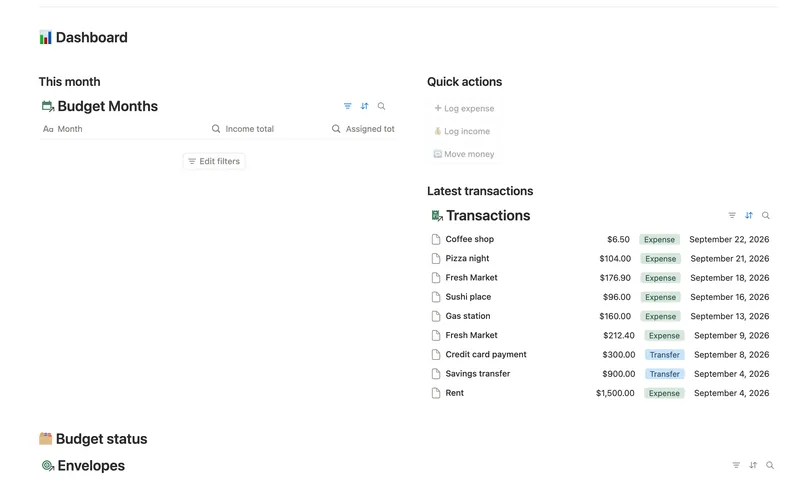
- 09 Zero-Based Budget Give every dollar a job before you spend it — Envelopes track Assigned, Carryover and Available in real time, Accounts keep a running Balance from your own transactions, and Budget Months shows exactly what's still To be assigned, all computed, never re-typed. 5 db · 17 formulas · 3 buttons
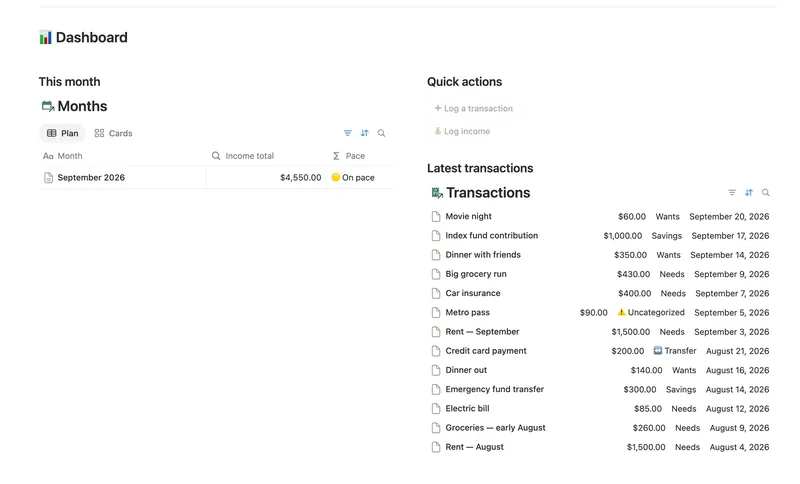
- 08 50/30/20 Budget Split every paycheck into Needs (50%), Wants (30%) and Savings (20%). Tag each purchase with a Category and its Bucket, its Month status and the whole dashboard fill in on their own. 5 db · 23 formulas · 2 buttons
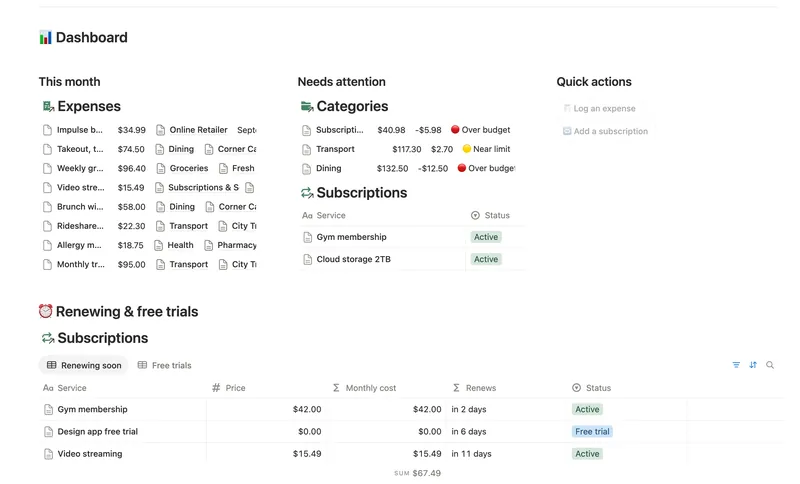
- 10 Expense & Subscription Tracker See exactly where your money goes — spending by category and merchant, every subscription's real monthly cost, and the ones quietly going unused. 5 db · 21 formulas · 2 buttons
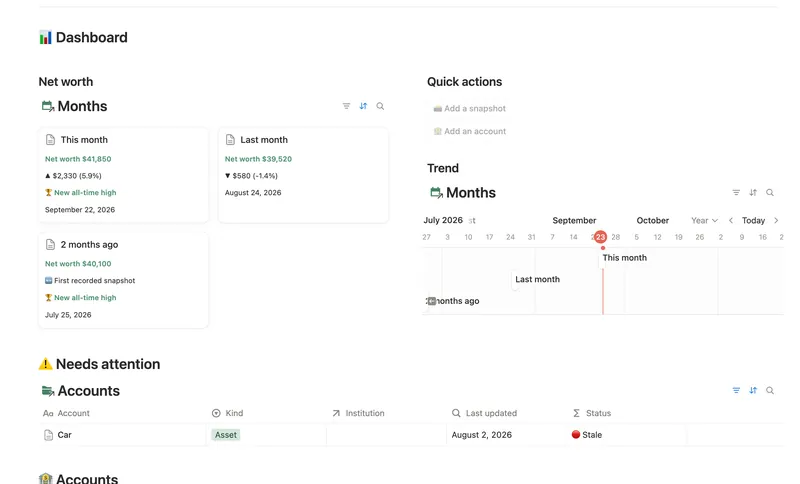
- 13 Net Worth Dashboard List everything you own and owe across every institution and asset class, and watch net worth compound month over month — with stale balances and allocation drift caught before they quietly skew the number. 5 db · 17 formulas · 2 buttons
§ The Bundle
Build it once, or start from a template
50 Notion templates, $197 value, $47 once.
One-time payment · Works on Notion Free · Instant Library access