
Updated Sep 27, 2026
How to Make a Notion Dashboard: Setup, Layout and 5 Working Examples
A Notion dashboard is a page you make from ordinary blocks: columns, linked database views, callouts and buttons that pull your tasks, budget or client work into one place you check first. There's no special dashboard block for most workspaces — five steps get you there, and a couple of habits are what make people stop opening it.
What is a Notion dashboard, and is it the same as your Notion home page?
A Notion dashboard isn't a distinct block type. It's a normal page assembled from columns, linked database views, callouts and buttons, built around one job: your week, your money, your clients. Notion's own Home tab is a different thing entirely — a fixed sidebar tab organized into sections like Upcoming events, Recents, Favorites and My Tasks, which pulls tasks assigned to you from any database you've set up as a Task database (up to 10 per workspace). As of September 2026, Home is available on every plan, from Free through Enterprise, but you can't drop a column layout or a button into it the way you can on a regular page. The two work together: Home surfaces what's due everywhere; a dashboard goes deep on one area of your life or work.
Notion dashboard setup: build it in five steps
- Lay out the page in columns. Type
/columnsand pick a 2- or 3-column layout, or drag a block to an edge until a vertical line appears. A common shape that holds up over time is three columns: a "due this week" list on the left, a "needs attention" list in the middle, and a column of quick-add buttons on the right. - Add linked database views filtered to today, this week or overdue. Type
/databasein an empty block and choose "Link to existing data source," then pick the database and filter the view it drops in — for example, Done is unchecked and Due date is on or before one week from now for a "this week" view, with a second linked view filtered to Due date is before today for anything overdue. Filtering or sorting a linked view never touches the original database, so you can keep a strict filter on the dashboard without affecting the full table elsewhere. For anything date-driven that isn't a task, like an appointment or a bill, a linked calendar view or Home's Upcoming events can sit next to these lists. - Add callouts and buttons for what you do every day. A callout can hold a short weekly-review checklist or a reminder of what a color or icon means. A button (
/button) can create a new row with values pre-filled, such as a task due today. One real limit: a button can only fill a relation with the same page every time, so a shared quick-add button can't know which project or client a new row belongs to, and that row lands unlinked until you connect it by hand. - Synced blocks vs. linked database view: pick one per widget. A synced block is one block pasted in multiple places; edit any copy and all of them update, right for a shared instructions callout or a status-color key you want identical everywhere. A linked database view is the opposite: each copy can have its own filter, sort and grouping, which is the entire point of a dashboard. Use linked views for the data widgets and synced blocks only for that one static piece of text.
- Open it on a slow day. Check the dashboard when nothing is overdue. If every view still says something useful, like "nothing due, next up is X," it will survive the weeks you don't feel like tidying it.
Does Notion have a native dashboard view now?
Yes. Open any database, select + Add a new view, and choose Dashboard (or type /dash). A dashboard view arranges widgets (tables, boards, calendars, charts and timelines) into one layout, up to 12 widgets total and 4 per row, and it supports a global filter that applies across every widget that shares the filtered property. You can also skip manual widget placement and ask Notion Agent to draft a first layout, then adjust it in Edit mode. As of September 2026, though, dashboard views are available only on Business and Enterprise. Free and Plus don't have this option, which is why the column-and-linked-view build above (and every example in this article) is what those workspaces actually use.
Chart blocks are a separate feature and reach further down the plan ladder. Add one with /chart or from the + menu next to a database, in five types: vertical bar, horizontal bar, line, donut and number. As of September 2026, Free gives you one active chart at a time — delete it to make another. Paid plans allow unlimited charts. A formula property styled as a progress bar (a budget's percent spent, a project's completion rate) does the same job without touching that one-chart limit; the progress bar formula guide has the exact syntax.
Notion dashboard layout ideas that actually get used
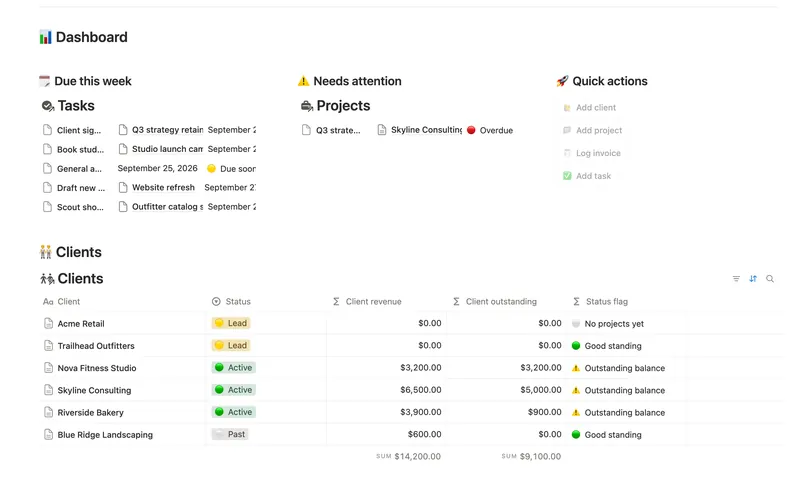
Match the layout to how often you check each part. The top third is for right now: today, this week, overdue, in narrow list views; a table in a tight column cuts off the numbers you opened the dashboard to see. The middle is a working list that needs a decision (unpaid invoices, a stale account, a project with no next task), filtered to only the rows that need attention. The bottom is reference: a full table of every client, project or account, with a totals row and a board grouped by status for the full picture. The totals and status columns in that bottom tier are almost always rollups reading a relation rather than a number anyone re-types, and the guide to relations and rollups covers how that chain is built.
Making a Notion dashboard look good without slowing it down
Set a page icon and cover so the dashboard is recognizable at a glance in a crowded sidebar. Pick one accent color or icon set per section instead of one per row — consistency reads faster than color-coding everything. Keep callouts to a single line; a callout that runs three lines stops getting read at all.
5 Notion dashboard examples
Five dashboard ideas, each built from a real set of linked databases rather than a mockup:
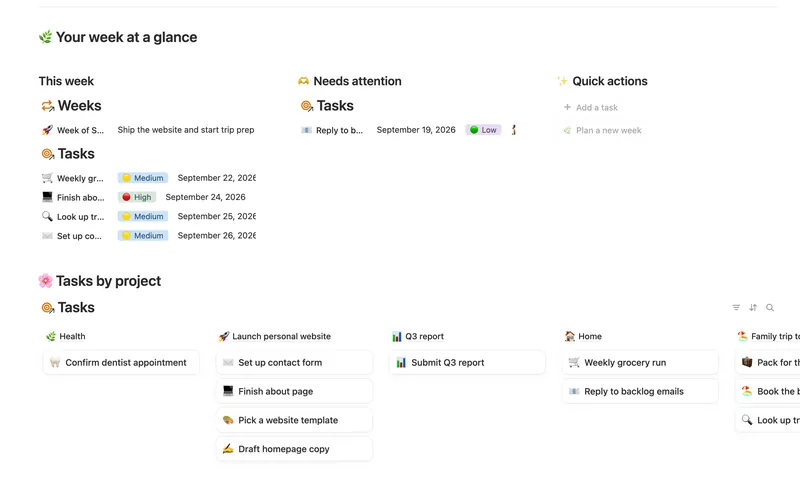
- Personal dashboard. One column of this week's tasks, one of overdue tasks, one of quick-add buttons — the shape behind the Weekly Planner template, where each task links to a Project/Area and a Week, and completion counts fill themselves in as you check tasks off. If a single week isn't the whole picture and you want every area of your life under one structure, the Notion life OS guide goes wider than one dashboard.
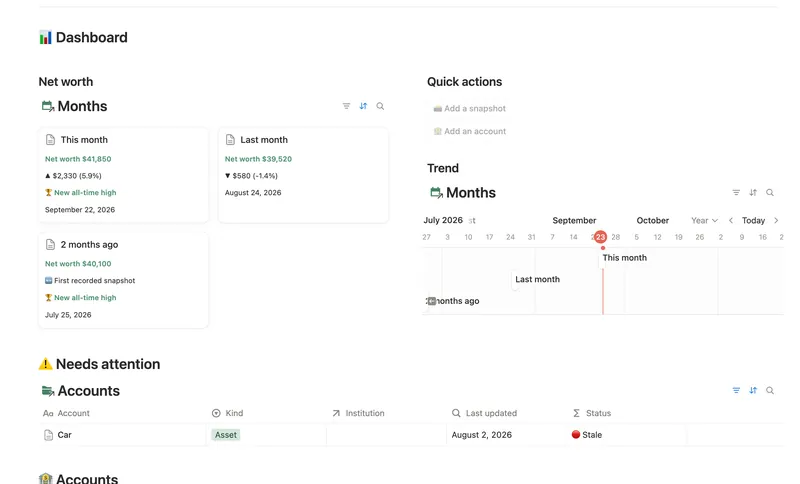
- Money dashboard. A monthly snapshot habit is the whole mechanism: log a balance, and it becomes that account's current balance, which rolls up into an institution, an asset class and a month, so net worth and its month-over-month trend compute themselves. The Net Worth Dashboard template flags any account with no snapshot in 45 days, which catches the most common way a net worth number quietly goes wrong: a forgotten account.
- Freelance dashboard. The same four-part shape at solo scale: clients, projects, invoices and tasks, with money flowing two hops (an invoice's amount rolls up to its project, then that project's total rolls up to its client) so nothing gets typed twice.
- Small business dashboard. The Small Business Dashboard template is that same four-database shape at team size, with a client's own page shareable as a private, view-only portal of just their projects and invoices, and a computed health flag on every project instead of a manual status someone forgets to update.
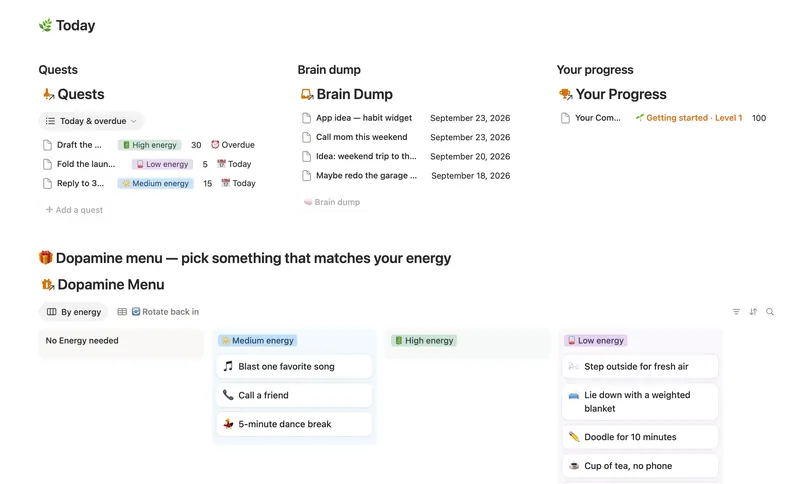
- ADHD-friendly dashboard. Built around what you actually did, not what you planned: the ADHD Command Center template counts XP straight from logged Quests, keeps a Brain Dump for stray thoughts, and tracks active days rather than a streak that resets on one missed day. Its "having a rough day" button jumps straight to the lowest-energy tasks instead of the full list.
What makes a Notion dashboard slow or something people stop opening
A few habits do most of the damage. A full table crammed into a narrow column cuts off the numbers you built the dashboard to see, so use a list view there and save table view for a full-width section. Quick-add buttons that can't know which project a row belongs to leave orphaned tasks and invoices floating free of any project, invisible until you add a "needs linking" view to catch them. A dashboard that only ever shows good news, with no filtered "needs attention" view, stops getting opened — the useful half of a dashboard is the part that surfaces a problem, not the part that confirms everything is fine. And a number with no self-check, like a streak or a stale balance, can sit there wrong for weeks; a small "last updated" view catches that before the headline number does.
None of this requires more Notion than the Free plan gives you. Columns, linked database views, buttons, callouts, formulas, relations and rollups all work at every tier. Only the native dashboard view needs Business or Enterprise, and more than one chart needs Plus or above. The Weekly Planner, Net Worth Dashboard, Small Business Dashboard and ADHD Command Center templates above ship all of this already built, and they're part of the Templitize Bundle: 50 Notion templates for $47 once, working entirely on the Free plan.
Related templates
- 45 Small Business Dashboard See every client, project, invoice and task in one weekly dashboard — with revenue and what's owed rolling up automatically from invoice to project to client, so nothing is ever typed in two places. 4 db · 18 formulas · 4 buttons
- 13 Net Worth Dashboard List everything you own and owe across every institution and asset class, and watch net worth compound month over month — with stale balances and allocation drift caught before they quietly skew the number. 5 db · 17 formulas · 2 buttons
- 03 ADHD Command Center Corral every quest, stray thought and dopamine hit into one gentle system — one that tracks your XP and shows up for you on the days that don't go to plan, not just the good ones. 5 db · 12 formulas · 3 buttons
- 01 Weekly Planner Plan your week around what actually matters, connect every task to the project or area it belongs to, and close each week with a gentle review — progress that computes itself, no guilt, no spreadsheet. 3 db · 8 formulas · 2 buttons
§ The Bundle
Build it once, or start from a template
50 Notion templates, $197 value, $47 once.
One-time payment · Works on Notion Free · Instant Library access