
Updated Sep 27, 2026
The Notion Progress Bar Formula: Every Method, With Copy-Paste Code
There's no single Notion progress bar formula — there are three real methods, and which one you want depends on what you're measuring: native Bar or Ring display on a Number or formula property, a rollup's Percent checked calculation over a relation, or a custom text bar built with repeat() and style(). Here's each one, with working formulas.
Does Notion have a built-in progress bar?
Yes. As of September 2026, Notion lets you show any Number or formula property as a horizontal Bar or a circular Ring instead of a plain number — its help center confirms Number properties can be "formatted as currency or progress bars." You turn it on from the property itself, not a separate chart or view.
The setting that controls the bar's maximum is called Divide by — Notion's own example is dividing by "your monthly budget, or total engineering hours for a sprint." It's one fixed number, applied to every row, not read from another property. If your maximum varies per row (a $500 goal next to a $3,000 one), compute the ratio in a formula first and set that formula's Divide by to 1.
How to make a progress bar in Notion (step by step)
- Open the database and click the property you want to show as a bar — it must be a Number property, or a formula that returns a number.
- Click Edit property.
- Under Show as, choose Bar or Ring instead of Number.
- Set Divide by to the maximum value the bar should represent. Use
1if your formula already outputs a 0–1 ratio. - Optionally show the number inside the bar, and pick a color.
If every row shares the same target, a plain Number property needs nothing more. The moment targets differ per row, or the value comes from a relation, go to a formula first.
Notion formula progress bar checkbox: percent complete from a checklist
The most common real case, "what percent of these sub-items are done," isn't a formula — it's a rollup. Notion's rollup properties support a percent_checked calculation (documented in Notion's API reference) that reads a checkbox property across a relation and returns the share that's checked, no formula required.
- Add a relation from the parent (a Course, a Goal, a Project) to its sub-items (Modules, Tasks, Steps), if none exists yet.
- Make sure the sub-item database has a checkbox property (Done, Complete, Checked).
- On the parent, add a Rollup property pointed at that relation, choose the checkbox property, and set the calculation to Percent checked.
- Edit that rollup's display to Bar or Ring, same as a Number property.
The Course Tracker template runs this same rollup for its module progress, then adds a second formula on top that renders the ratio as a dot-character bar, the same custom-text-bar technique below — not Notion's native Bar display. It's also the cleanest fix for "notion formula progress bar checkbox" searches that assume you need to write one: this rollup doesn't.
Notion custom progress bar formula (when you want a text bar)
The native Bar display looks like a bar, but it's a UI element attached to the property — it can't sit inside a sentence, a page title, or a rollup that reads it as plain text. For that, build the bar as characters, using repeat() to lay down filled and empty segments:
lets(
    pct, min(max(prop("Progress %"), 0), 1),
    filled, round(pct * 10),
    repeat("●", filled) + repeat("○", 10 - filled) + "  " + format(round(pct * 100)) + "%"
)
repeat(text, number) is a documented Notion formula function; this version pairs it with round(), format(), and lets() to name the intermediate values instead of nesting the expression three times. Swap 10 for a wider bar, or ●/○ for ★/☆, █/░ or ♥/♡ (stars, blocks, hearts) — repeat() doesn't care what string you give it.
Add style() to flag a goal that's run past its target instead of just capping it silently:
lets(
    pct, if(prop("Target") == 0, 0, prop("Saved") / prop("Target")),
    capped, min(max(pct, 0), 1),
    filled, round(capped * 10),
    label, repeat("●", filled) + repeat("○", 10 - filled) + "  " + format(round(pct * 100)) + "%",
    if(pct > 1, style(label, "b", "red"), label)
)
Past 100%, it still shows the real percentage (127%, say) in bold red, while the dots stay capped at ten segments. See the Notion formulas cheat sheet for the rest of formula 2.0 syntax — let/lets, dot-chaining, map/filter with current.
Notion progress bar formula copy paste: ready-to-use snippets
Four working formulas for the trackers people actually build. Each assumes the property names shown; rename to match your own database.
Notion goal tracker with progress bar (savings or money goal)
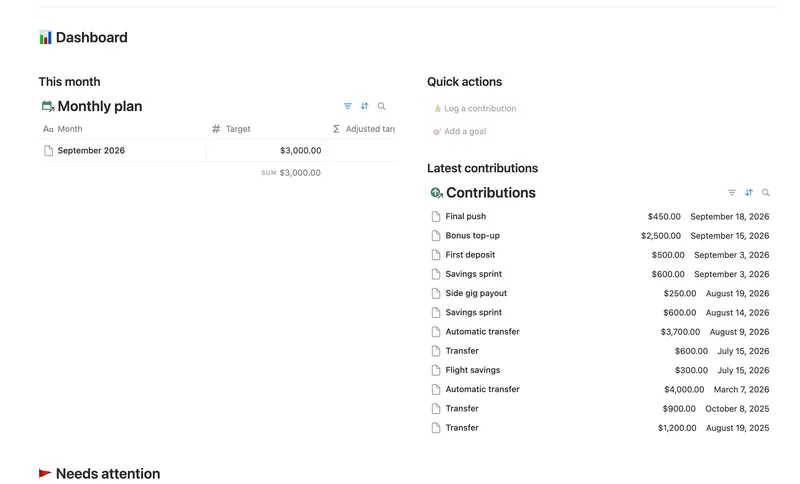
if(prop("Target") > 0, min(prop("Saved") / prop("Target"), 1), 0)Set this property's display to Bar, Divide by 1 — the native-display route. The Savings Goals template computes this same guarded ratio as its Progress %, then renders its own dot-character bar from it with the method above, with Monthly needed and an on-pace check built on the same number.
Notion habit tracker progress bar formula
For a single habit's completion rate, a Percent checked rollup over its Check-ins relation (Done checkbox) gives you the raw ratio, same as the course example above. To guard it against a brand-new habit with zero check-ins logged yet:
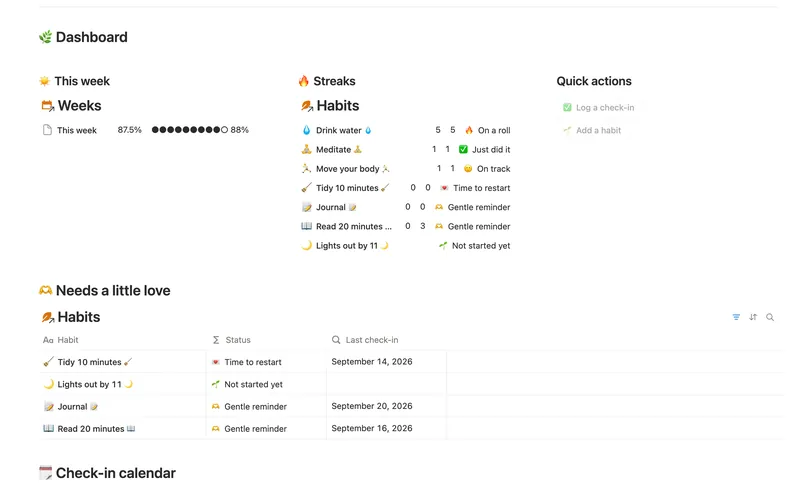
if(prop("Check-ins logged") == 0, 0, prop("Completion rate"))Check-ins logged is a plain count rollup on the same relation; Completion rate is the Percent checked rollup. The Habit Tracker template pairs these two rollups for its Progress bar — see building habit streaks in Notion for the companion streak formula, which reads the same relation differently.
Goal or OKR key result progress bar
For a metric with a Starting value and a Target value that can move in either direction:
if(empty(format(prop("Starting value"))) or empty(format(prop("Target value"))), 0,
if(prop("Target value") == prop("Starting value"),
   if(prop("Current value") > prop("Target value"), 1, 0),
   max(min((prop("Current value") - prop("Starting value")) / (prop("Target value") - prop("Starting value")), 1), 0)))
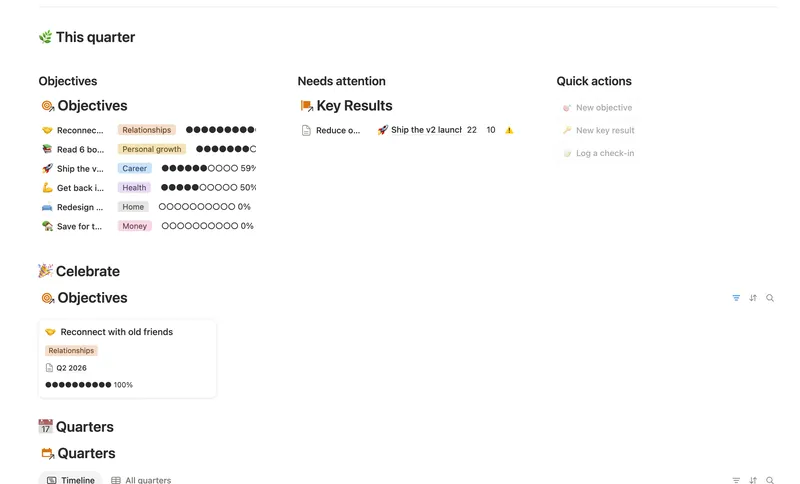
That's the standard OKR shape, (Current − Starting) ÷ (Target − Starting), guarded twice: empty() catches a Starting or Target still blank on a fresh Key Result, and the equality check catches a milestone KR where Starting equals Target, so the division never hits zero. It's the same ratio the Goals & OKRs template uses for each Key Result's Progress %, which rolls up (averaged) into its Objective's, and again into the Quarter's, every level rendering its own bar from its own number.
Notion course tracker or class progress bar
Module completion is the same Percent checked rollup pattern as the habit tracker above. For a weighted grade instead of a flat completion percent:
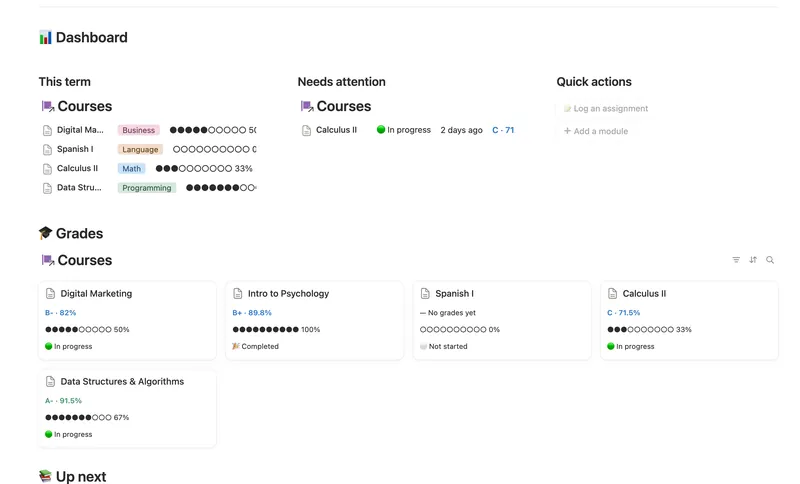
if(prop("Weight graded") <= 0, 0, prop("Weighted points") / prop("Weight graded"))Weighted points sums each assignment's Weight % × Score %; Weight graded sums only the weight of assignments already scored, so an ungraded one doesn't drag the grade toward zero. This is the Course Tracker template's Grade % — shown next to the letter grade as bold, colored text (B+ · 87.3%), not a bar; its actual progress bar tracks module completion instead, from the same Percent checked rollup above.
Progress bar pitfalls: divide by zero, over 100%, and rounding
| Pitfall | What goes wrong | Fix |
|---|---|---|
| Dividing by zero | A fresh row with no Target yet, or a milestone Key Result where Target equals Starting | Check the denominator first: if(prop("Target") == 0, 0, …) before you divide, not after |
| Values over 100% | A savings goal you overshot, or a grade above the max, breaks a bar capped at one full segment | Clamp the display ratio with min(max(x, 0), 1); show the true, uncapped percentage as separate text if the overshoot itself is worth seeing |
| Rounding order | round(pct) * 100 rounds the fraction to whole numbers first, so 0.333 becomes 0% instead of 33% | Multiply first, round second: round(pct * 100), never round(pct) * 100 |
Worth knowing: empty() on a Number property reads a genuinely entered 0 as empty, not just a blank cell — why the Key Result formula above wraps each value in format() before checking empty(). To tell "really zero" apart from "never set" elsewhere, compare format(prop("X")) == "" instead of empty(prop("X")) directly.
Which method should you actually use?
| Method | Best for | Limitation |
|---|---|---|
| Native Bar or Ring display | A ratio already between 0 and 1, or a target that's the same for every row | Divide by is one fixed number per property, not per row |
| Rollup, Percent checked | "How many sub-items are done" — modules, checklist items, sub-tasks | Needs a relation and a checkbox; doesn't handle a partial or weighted score |
Custom text bar, repeat() | A bar that has to live inside a title, a sentence, or another formula's text | More setup than a display toggle; you own the guard clauses |
All of this runs on Notion's Free plan the same as any paid tier: bars, rings, rollups and formula 2.0 syntax aren't gated by plan the way chart blocks are (Free allows one active chart block; property display isn't one). If you'd rather not type these by hand, Savings Goals, Habit Tracker, Goals & OKRs and Course Tracker ship all four already wired up — four of the 50 templates in the Bundle, $47 once.
Related templates
- 12 Savings Goals Fund multiple goals on a real schedule — know exactly how much each one needs this month, whether you're actually on pace to hit it, and which milestone is next. 5 db · 22 formulas · 2 buttons
- 04 Habit Tracker Check off your habits day by day and watch streaks and a weekly score build themselves — with a gentle nudge, never a guilt trip, toward whatever needs a little love. 3 db · 13 formulas · 2 buttons
- 05 Goals & OKRs Turn each quarter's goals into Objectives with measurable Key Results, log a quick Check-in whenever you make progress, and watch two-tier rollups keep every Objective's — and the whole Quarter's — percentage honest, all the way up, without ever re-typing a number. 4 db · 15 formulas · 3 buttons
- 27 Course & Learning Tracker Track every course from syllabus to final grade — Modules in order, Assignments weighted into a live grade, and what's due next surfaced before it's late. 3 db · 12 formulas · 2 buttons
§ The Bundle
Build it once, or start from a template
50 Notion templates, $197 value, $47 once.
One-time payment · Works on Notion Free · Instant Library access