
Updated Sep 27, 2026
How to Make a Notion Template: Database Templates, Shareable Pages and Selling
"How to make a Notion template" means two different things. A database template is a preset page inside one database, built from the New dropdown, that pre-fills properties and content every time you add a row. A shareable template is a whole page anyone can duplicate into their own workspace, turned on through Publish and Share.
What does "make a Notion template" actually mean?
People search this phrase for at least three different jobs: building a reusable preset inside a database, turning an existing page into something others can duplicate, and packaging a template to sell. The mechanics don't overlap — a database template never leaves the database it was built in, while a shareable page runs through Notion's separate publish-and-share system. This guide covers both, then selling.
How to create a database template in Notion
Notion database templates are for when the same kind of page gets created over and over inside one database: a meeting note, a journal entry, a recipe.
- Open the database and click the dropdown arrow next to New, at the top right.
- Select + New template.
- Title the template and add whatever content and pre-filled properties should exist every time: a checklist, a status, a category.
- Click outside the template to save it. It now appears in the gray template menu whenever someone clicks New.
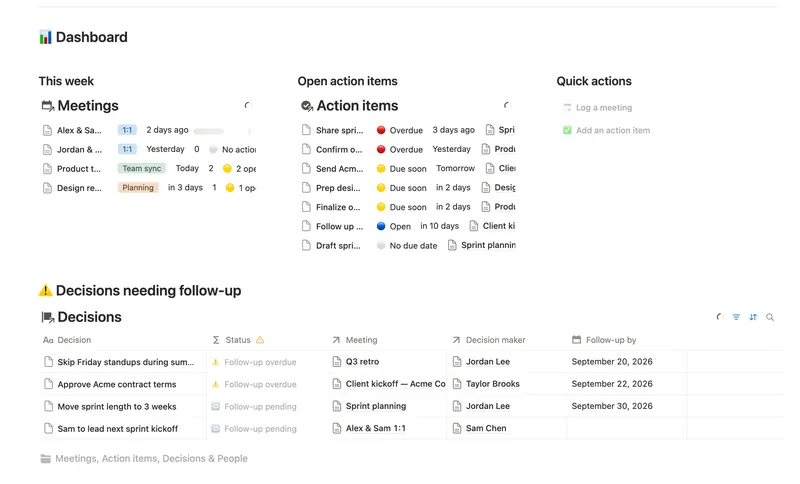
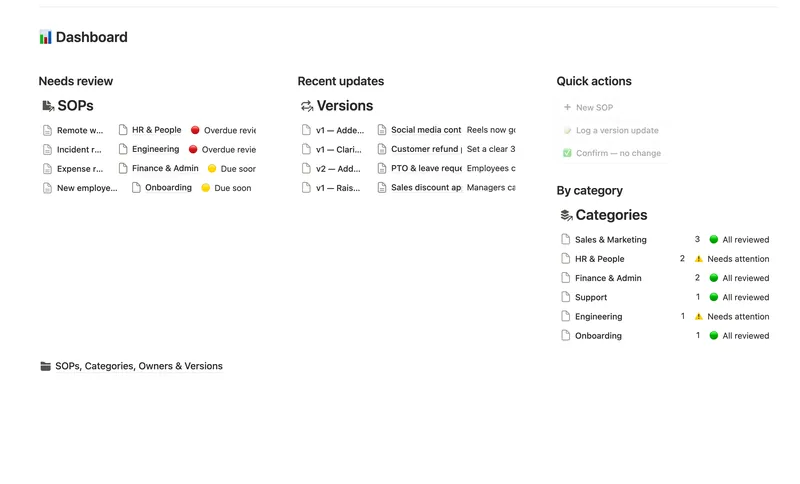
Notion's own documentation flags a gotcha: don't fill in a relation property inside a template unless every page it creates should link back to that exact same page. Meeting Notes & Decisions runs into this directly — its Action items and Decisions quick-add templates leave Owner and Decision maker unlinked on purpose, with a "🔗 Needs linking" view on each database to catch anything still missing one, because a template genuinely can't set a relation to a different page each time. SOPs & Team Wiki hits the same limit on its Category and Owner relations, with no dedicated catch-view of its own; link them by hand right after using the quick-add template.
A database template is scoped to the database it was built in — it won't show up anywhere else in your workspace, and there's no cap on how many you can make in one database.
How to set a database template as the default
Once one template covers most of what you add, make it automatic instead of picking it from a menu every time.
- Click the dropdown arrow next to New.
- Click the ••• next to the template.
- Select Set as default.
- Choose whether the default applies to just the view you're in or the whole database.
Every future click of New now opens that template pre-filled instead of a blank page — worth doing wherever consistency matters most: a wiki where every SOP starts with the same sections, or a recipe box where every entry already has Prep time and Cook time waiting.
How to make a database template repeat
A database template can also recreate itself on a schedule — Notion's native way to handle a recurring row.
- Click the dropdown next to New.
- Select ••• next to the template you want repeating.
- Open the dropdown next to Repeat.
- Choose Daily, Weekly, Monthly or Yearly, how many of that interval apart, a start date and a time.
Notion creates a fresh page from that template at each scheduled time; a recurring invoice or a weekly status update are good candidates. Repeats aren't generated ahead of time, so don't expect tomorrow's row to already exist. Need a due date that pushes itself forward instead of a page that reappears? The recurring tasks guide covers that formula-based version of the same problem.
Do Notion templates support dynamic dates or people?
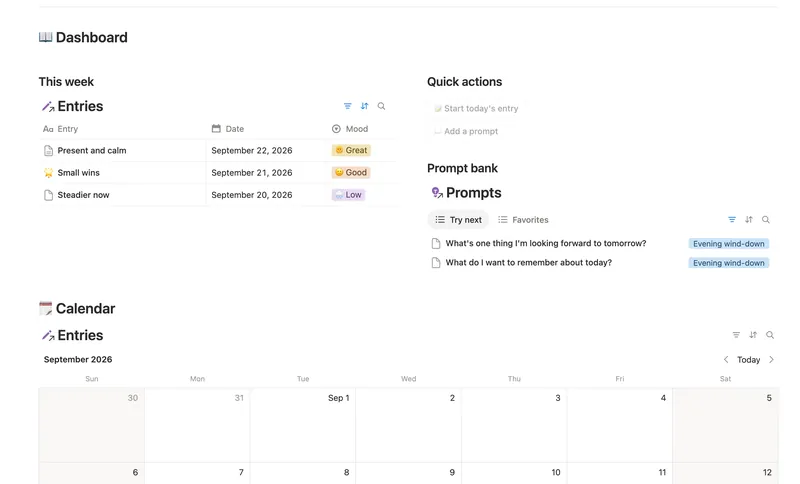
Partly. Type @today inside a template's body and Notion offers a "Date when duplicated" option, so every copy shows the day it was actually used rather than the day you built the template. For a date you can sort and filter by, add a Created time property: Notion stamps it on every new page automatically. That pair covers most "log today's entry" setups.
For people, a Created by property records whoever made each page without any setup; a Person property set inside the template stays fixed on every copy, so pre-fill a name only if the same person always uses it. Buttons work the same way: one that adds a page can set a Date to @today, but a button or database template can only fill a relation with the same page every time. See the buttons guide for the button side of this limit.
How to create a Notion template from an existing page
If you already have a page you like (a dashboard, a project wiki, a set of notes), you don't rebuild it as a database template to share it. You publish it as it already exists, using the method below. "Database template" doesn't apply here: that mechanic is specific to rows inside a database, while a whole page goes through Notion's separate publish flow.
How to make a Notion template public, or to share
This is the method behind every duplicate-able template you've ever clicked "Duplicate" on.
- Open the page and click Share, top right.
- Switch to the Publish tab.
- Click Publish. Notion gives the page a public
notion.siteURL. - In the same tab, turn on Duplicate as template. This adds the "Duplicate" button visitors see, letting them copy the page into their own workspace.
- Turn on Discoverable on the web to make the page findable through search, not just a link you send.
Notion's publishing documentation notes that publishing a page publishes its subpages too, so check what's nested underneath before flipping this on. As of September 2026, every plan, Free included, can publish an unlimited number of pages to the web; a custom notion.site domain and deeper site customization are the real paid-plan extras, with Free limited to one domain rather than one page.
What makes a Notion template worth duplicating?
Notion's own creator guidance is direct: a template people keep using has a clear, single purpose, correct spelling, and consistent structure — not every feature you know how to build crammed onto one page. Before you publish, add instructions on the page itself, even a short video or a few bullet points, so someone who's never talked to you can use, tweak or customize it.
Share a link or list on Notion Marketplace?
Publishing gets you a link. Getting found by people who aren't already looking for that link is a different problem, and Marketplace is Notion's answer to that one specifically.
| Just share the link | List on Notion Marketplace | |
|---|---|---|
| Setup | Publish, then turn on Duplicate as template | Publish, then a creator profile and a listing |
| Who finds it | Only people you send it to | Anyone browsing or searching Marketplace |
| Review | None | Every submission is reviewed before listing |
| Getting paid | You handle it yourself | Marketplace checkout, after payment approval |
| Who controls the listing | You, entirely | Subject to Notion's guidelines |
How to make a Notion template to sell
As of September 2026, Notion's own publish flow has no payment gate built in — turning on Duplicate as template makes the page free to copy for anyone with the link, full stop. Selling one takes one of two paths.
Sell it yourself. Publish the page, but only send the duplicate link after payment, collected through a platform like Gumroad, Lemon Squeezy or your own checkout. You control pricing and distribution completely; you're also responsible for delivery, since Notion has no native way to gate a link by whether someone paid.
List it on Notion Marketplace. Set up a creator profile, then publish your template with Duplicate as template on. From your creator dashboard, Notion's own guide walks through submitting the template's name, published link, category, screenshots and price, then submitting it for review — every listing goes to Notion's team before it's approved. As of September 2026, getting paid directly needs a separate approval step and a connected Stripe account, and Notion charges an 8% fee plus 40 cents per transaction; coupons for your own listing are a native creator-dashboard feature, no workaround needed.
Neither path is better in the abstract. Marketplace trades some control and a cut of revenue for real discovery; selling it yourself keeps the whole sale but means you're the only source of traffic. It's why Templitize's 50 templates aren't sold as 50 separate listings — one checkout, one set of duplicate links after payment, is the "sell it yourself" path at bundle scale.
Templates that already use these mechanics
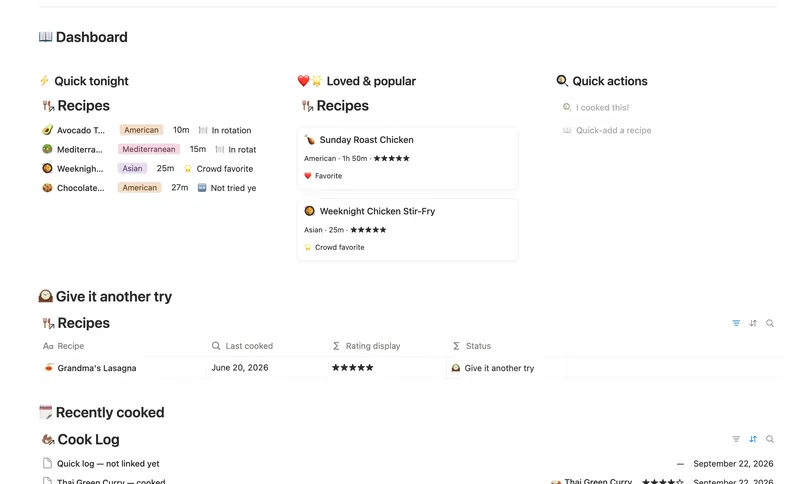
Meeting Notes & Decisions ships its database templates with the relation gotcha above already handled by a "🔗 Needs linking" view on Action items and Decisions; SOPs & Team Wiki hits the same relation limit on Category and Owner, with no catch-view of its own. Daily Journal instead fills in today's date through a dashboard button rather than Repeat, and Recipe Box pairs a "Cooked it!" database template on Cook Log with a one-click "I cooked this!" button for logging a cook — the same quick-add-button pattern the dashboard guide recommends for a quick-add column. All four are part of the Templitize Bundle, 50 templates for $47 once.
Related templates
- 47 Meeting Notes & Decisions Capture every meeting's notes, decisions and action items in one connected place — see who owns what, what's overdue, and which decisions still need a follow-up, without re-typing any of it by hand. 4 db · 8 formulas · 2 buttons
- 28 Daily Journal Capture how each day actually felt — a mood, a gratitude, a few honest lines — and watch a gentle streak build the moment two days land back-to-back. 2 db · 7 formulas · 2 buttons
- 48 SOPs & Team Wiki See every process your team runs, who owns it and when it's next due for review — grouped by category, with a real version history behind each one instead of a single "last edited" date. 4 db · 11 formulas · 3 buttons
- 17 Recipe Box Keep every recipe worth repeating in one place — link its ingredients and tags so it's easy to find later, and let your own Cook Log fill in the rating, the cook count and the "make this again" nudge, so nothing gets typed twice. 4 db · 9 formulas · 2 buttons
§ The Bundle
Build it once, or start from a template
50 Notion templates, $197 value, $47 once.
One-time payment · Works on Notion Free · Instant Library access