
Updated Sep 27, 2026
Notion Buttons: What They Can Do, and What's Free vs. Paid
Notion buttons run one or more actions from a single click: add a page to a database, edit properties, send a notification, or open a link. A database button property does the same job from inside a table row instead of a page. Both work on Notion's Free plan; webhooks and most database automations don't.
What's the difference between a button block and a button property in a database?
A button block is a block on a page, added with the /button slash command. Click it and it runs whatever actions you've set up, once, from wherever you placed it — usually a dashboard.
A database button property does the same job from inside a table. That's usually what people mean by "notion buttons in database" — a column instead of a page block. Select the slider icon at the top of the database → Edit properties → New property → Button, and every row gets its own button running the same actions against that row. Add ten rows and you get ten independent buttons, one per row.
Both are available on every Notion plan, including Free. What's plan-gated is a handful of actions inside either one, not the button feature itself.
How does Notion button automation actually work?
Whichever kind you build, a button can chain several actions together and run all of them, in order, from one click. As of September 2026, Notion's documentation lists these actions:
- Insert blocks — add text, bullets, toggles or other blocks above or below the button, or at the top or bottom of the page
- Add page to — create a new page in a database you choose and set that page's properties
- Edit pages in — change properties on existing pages in a database you choose
- Send notification to — notify specific people in your workspace
- Show confirmation — pop up a confirmation screen before the button runs
- Open page or URL — jump to a page or a link
- Define variables — compute a value once from a mention or a formula, then reuse it below
- Send mail to — send an email from a connected Gmail account (paid plans)
- Send webhook — send an HTTP POST request to a URL (paid plans)
- Send Slack notification to — post to a Slack channel (Plus, Business and Enterprise)
A button can also trigger a database automation; a database automation can't trigger another one, whether the first automation started from a button, a manual edit, or a schedule.
Are Notion automations free, or do buttons need a paid plan?
As of September 2026, buttons themselves are free everywhere. What's mostly paid is the other kind of automation: a database automation that fires on its own, triggered by Page added, Property edited, or a recurring schedule.
| Free | Plus and above | |
|---|---|---|
| Button block | Included | Included |
| Database button property | Included | Included |
| Send mail / send webhook from a button | Not included | Included |
| Slack notification from a button | Not included | Included |
| Database automations | Slack notification only | All trigger types |
Notion's own help center is specific about that last row: a Free workspace can build a database automation that posts to Slack, and can use automations that already exist inside a duplicated template, but can't create a new Page added, Property edited, or scheduled automation. That lines up with what else is, and isn't, limited on Notion's Free plan: simple, one-step buttons are included at every tier, and it's multi-step, self-triggering automations that are the paid feature.
How do Notion button variables work?
Define variables lets a button compute a value once, from an @ mention like today's date or a formula, and give it a name. Every action below that step can reuse the name instead of re-entering the same formula twice.
That matters most when one click needs to set the same value in two places: stamping both a new page's title and one of its properties with today's date, so the two can't drift apart. Skip the variable and you'd have to type today() twice and hope you don't fat-finger one of them.
Notion buttons tutorial: five recipes you can copy
Each of these is a real button, built the same way, that takes a couple of minutes to set up.
Log a habit with one click
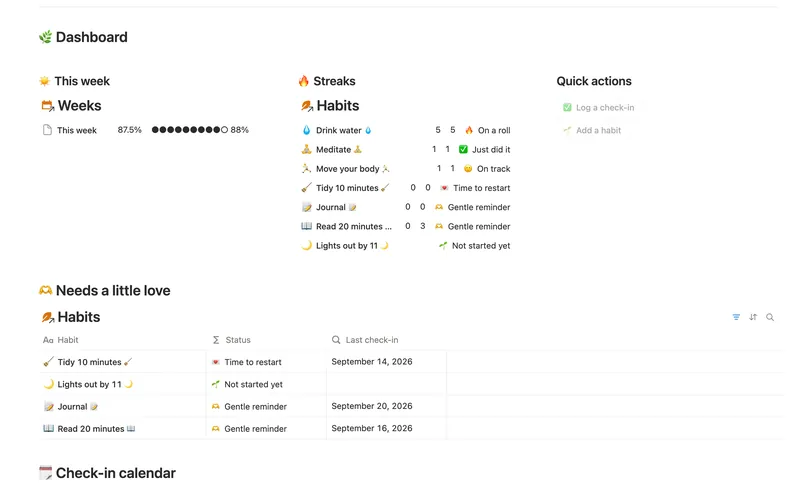
Log today's check-in without opening a form, on a habit tracker built from two linked databases, Habits and Check-ins.
- Add a button block, choose Add page to, and pick your Check-ins database.
- Set the new page's title to something like "New check-in."
- Set Date to
today(), so every click is stamped with the real date instead of whatever day you happen to remember to log it. - Set Done to checked.
Click it once a day and the row exists before you've thought about typing anything. The Habit Tracker template ships this button already wired up.
Start the day with a time block already open
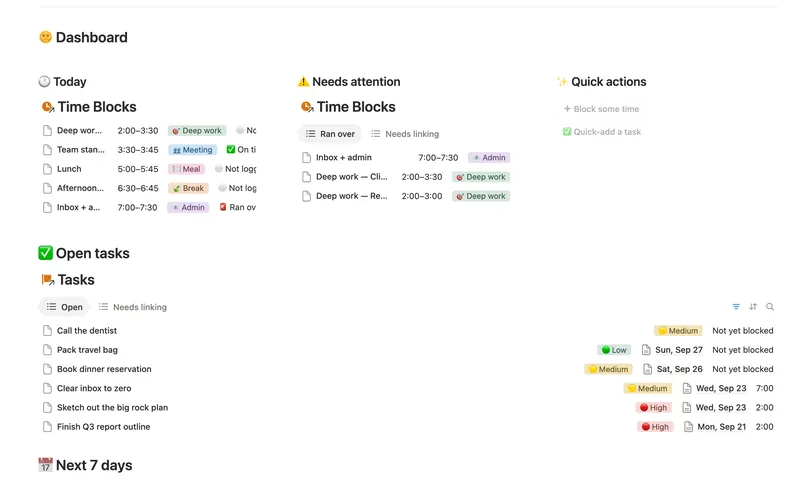
Start a time-blocking dashboard's day the same way: one button that adds today's first block before you've made a single layout decision.
- Choose Add page to and pick your Time Blocks database.
- Set Start to
today(). - Set a default Category, like "Deep work" — you can always change it, but a filled-in default beats an empty one.
The Daily Planner template's "Block some time" button works exactly this way. If you want a block or task that comes back on its own every day, that's a different mechanic: a button only creates a page once per click. See how recurring tasks actually work in Notion for the repeating and scheduled options.
Mark a bill paid and roll its due date forward
There are two honest ways to do this, and they trade off differently.
The simple version edits the bill directly. Choose Edit pages in, pick the Bill, and set Next due to a formula that adds one billing cycle to whatever it already is:
dateAdd(prop("Next due"), 1, "months")That runs on every plan in one click, but it overwrites the old due date, so you lose the payment history.
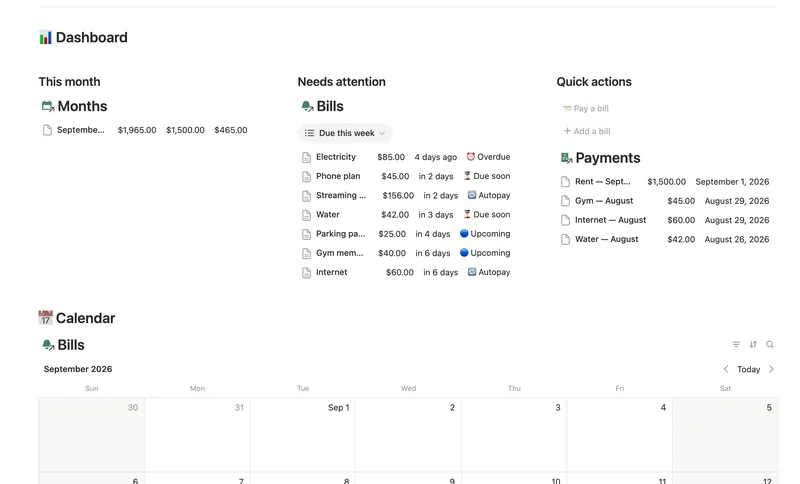
The sturdier version logs the payment instead: Add page to a Payments database, with Date set to today(). A formula on the Bill reads its latest linked Payment and adds the billing cycle, so Next due advances on its own and every past payment stays on record. That's what the Bills & Due Dates template does. The one thing to know: a button or database template can only fill a relation with the same page every time, not a different Bill depending on which one you're paying, so a payment logged from a shared button still starts unlinked to its Bill until you tag it by hand right after. For dateAdd and the other date functions, the formulas cheat sheet covers the syntax in more depth.
Start a meeting note dated today
Meeting notes want the same one-click treatment.
- Choose Add page to and pick your Meetings database.
- Set the title to "New meeting."
- Set Date to
today().
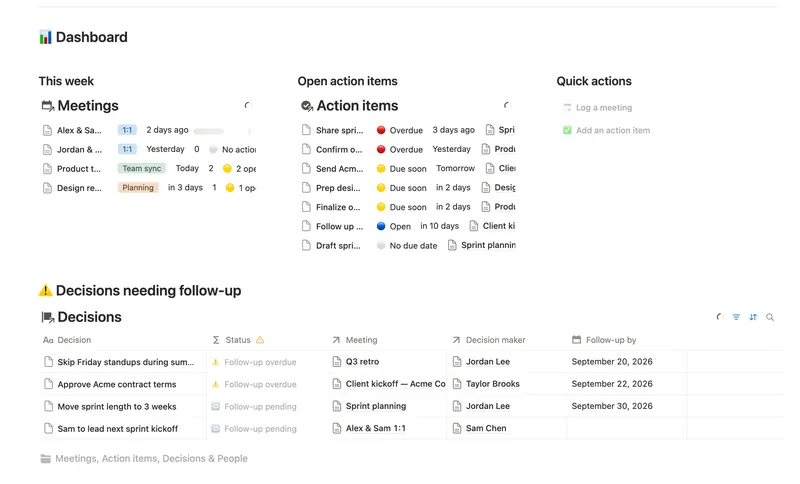
Every note starts dated correctly with zero typing, and you fill in attendees and decisions from there. The Meeting Notes & Decisions template's "Log a meeting" button is set up exactly this way, with a second button next to it for adding an action item without leaving the page.
Put two Notion buttons side by side
Two related buttons look, and work, better side by side than stacked. Hover over a button, grab the six-dot ⋮⋮ handle, and drag it next to the other one until a blue guide line appears — the same column mechanic Notion uses for any two blocks. Columns work on desktop and tablet; on a phone, a right-hand column moves underneath the left one, so a "Log a check-in" and "Add a habit" pair still works, just stacked.
Why are my Notion buttons not working?
A button that ran fine yesterday and now shows "Failed to execute" almost always comes down to one of three things:
- The database it adds to or edits has been deleted or moved.
- A property it sets has been renamed, changed type, or removed.
- A connected account behind an action, like Gmail or Slack, has lost its authentication and needs reconnecting.
Permissions cause a quieter failure. Clicking a database button needs Full access, Can edit, or Can edit content on that database, and building or editing one needs Full access or Can edit — a teammate with comment-only or view-only access can see the button but can't run it. And if a button that adds a page to a related database seems to have "lost" the relation, it hasn't actually failed: a button can only fill a relation with the same page every time, so a shared dashboard button's new row shows up unlinked whenever it belongs somewhere else, until you connect it by hand.
None of this needs a paid plan to be useful — every recipe above runs on Notion's Free plan just as written. The Habit Tracker, Meeting Notes & Decisions, Bills & Due Dates and Daily Planner templates all ship these buttons already built, along with the databases and formulas they log into. They're part of the Bundle, 50 templates for $47 once.
Related templates
- 04 Habit Tracker Check off your habits day by day and watch streaks and a weekly score build themselves — with a gentle nudge, never a guilt trip, toward whatever needs a little love. 3 db · 13 formulas · 2 buttons
- 47 Meeting Notes & Decisions Capture every meeting's notes, decisions and action items in one connected place — see who owns what, what's overdue, and which decisions still need a follow-up, without re-typing any of it by hand. 4 db · 8 formulas · 2 buttons
- 14 Bills & Due Dates Never miss a payment — every bill's next due date, its full payment history and which account it drains, computed automatically instead of retyped every cycle. 5 db · 11 formulas · 2 buttons
- 02 Daily Planner & Time Blocks Block your day into real Start/End times, keep tasks tied to the hour you meant to do them, and see — gently, never guiltily — whether today actually went the way you planned it. 3 db · 6 formulas · 2 buttons
§ The Bundle
Build it once, or start from a template
50 Notion templates, $197 value, $47 once.
One-time payment · Works on Notion Free · Instant Library access