
Updated Sep 27, 2026
Notion Recurring Tasks: The Setup That Actually Repeats
Yes, Notion has recurring tasks, just not as a checkbox on a single task. You set a database template to repeat on a schedule, or you write a formula that projects a new due date the moment you log the last one done. Notion's own reminders don't repeat yet, which is the part that trips people up.
Does Notion have recurring tasks?
Through database templates, yes. Any database can hold a template that creates a fresh page on a schedule you set, so a "Take out the trash" task can regenerate itself every week without you touching it. What Notion doesn't have, as of September 2026, is a recurring reminder: Notion's own help page answers the question directly in its FAQ — "Not at the moment, but recurring tasks and recurring reminders are on the roadmap!" A new task page appearing on schedule is not the same as a notification pinging you about it, and that gap is why most working setups pair a repeating template with a formula rather than leaning on repeat alone.
How to set up notion repeating database templates
This is the native method, and the right one when a task just needs to exist again on a schedule, no math involved.
- Open the database and click the dropdown arrow next to New at the top.
- Hover the template you want to repeat, click the ••• next to it, and choose Repeat.
- Pick an interval — Daily, Weekly, Monthly or Yearly, how many of that interval apart (every 1 week, every 3 months), a start date, and the time you want it to run.
- Save. Notion creates a new page from that template at each scheduled time from then on.
The Daily Planner template uses exactly this: its "New day" database template ships ready to duplicate, and its own setup checklist has you turn on Repeat: Daily yourself (New ▾ → the ⋯ menu on the template) — a one-time step, and tomorrow's row waits for you every morning after that.
Two things this method doesn't do. First, a relation left blank in the template stays blank on every new copy; fill one in instead, and Notion's documentation warns every future copy relates to that same page, not a different one each time — so a repeating "Weekly review" pointed at this month's project will keep pointing at it forever. Second, repeats aren't pre-generated: the setup asks for "the time you want your database template to be repeated," meaning Notion creates the next page at that moment, not in advance, so don't expect to see next Thursday's task sitting there today.
Notion recurring tasks with due date
A repeating template gives you a new page on schedule. It doesn't automatically stamp a due date onto that page unless you tell it to. The dependable way to stamp the day each copy was made is the separate, non-editable Created time property, which Notion fills in for every new page. Add Created time next to Due date on the template and use it as the due date for anything that's due the same day it appears. For a task due some days after it was last finished, rather than always on the same fixed schedule, use the formula method below instead.
Notion recurring tasks formula
The formula method skips repeating templates entirely: one row per task, and a formula recalculates its own next due date the moment you log it done. It's the same mechanic behind Bills & Due Dates (next due = last payment plus the billing cycle) and Household Hub (next due = last chore log plus frequency).
Build it with two related databases, Recurring Tasks and Completions, then add two formulas to Recurring Tasks. Name the first Frequency (days):
ifs(
  prop("Frequency") == "Daily", 1,
  prop("Frequency") == "Weekly", 7,
  prop("Frequency") == "Biweekly", 14,
  prop("Frequency") == "Monthly", 30,
  prop("Frequency") == "Quarterly", 90,
  prop("Frequency") == "Yearly", 365,
  7
)
Then name the second Next due:
if(
  empty(prop("Last done")),
  prop("First due"),
  dateAdd(prop("Last done"), prop("Frequency (days)"), "days")
)
Last done is a rollup pulling the latest Date from that task's linked Completions rows. Log a completion and Next due moves itself forward, no date to retype. Notion's formula reference confirms dateAdd also accepts "weeks", "months" and "years" directly, so swap the unit if you'd rather skip the days conversion entirely for a monthly-only task list.
To log a completion without opening Completions directly, add a create-page button labeled something like "Mark done today" — the buttons guide covers exact setup. The one catch: a button can only fill a relation with the same page every time, so a completion added from a shared dashboard button lands unlinked until you tag it by hand, the same gotcha Bills & Due Dates and Household Hub both ship a "Needs linking" view to catch. Logging from the task's own page instead skips that step, since a view filtered to that page fills the relation in for you. For more of this rollup-into-formula pattern, see the formulas cheat sheet.
Notion recurring tasks calendar
Calendar view reads whichever Date property you point it at, nothing more. A repeating template's occurrences each get their own page and their own date, so once they exist they stack up on the calendar exactly like any other task. The formula method looks different there: since Next due lives on one row, that row shows on a single date at a time and jumps forward the moment you log it, rather than showing every future occurrence at once the way a dedicated calendar might. If your days are planned by the hour rather than by the date, time-blocking in Notion is a better fit than a plain calendar view for seeing where a recurring task actually lands.
Why are my notion recurring tasks not working?
Most reports trace back to one of these:
- Nothing's on the calendar yet. Repeats generate at their scheduled time, not ahead of it — check back after that time passes, not before.
- A relation is empty, or stuck on one target. See the note above; it's the most common cause by far.
- The Date field is blank or stale on new copies. A Date property set to a fixed day inside the template copies that same day onto every repeat, and a blank one stays blank. Add a Created time property if you want each new copy to carry its own date automatically.
- You expected a reminder to repeat. It won't. Notion's own reminders don't recur, so a repeating template gives you a new row, not a ping — add a manual
@remindif you actually need one. - A time looks wrong to a teammate. A date with a time displays in whichever time zone each person's own account is set to, not one shared workspace clock, so check Settings & members → My settings on both sides before assuming the task itself is wrong.
- You need specific weekdays, not a plain interval. Repeat only takes one daily/weekly/monthly/yearly interval from a single start date — there's no "every Mon/Wed/Fri" option. Set up one repeating template per weekday instead, or add a Days of week multi-select and check it inside the Next due formula above.
When a dedicated task app beats Notion
Notion's repeating templates and formulas cover most personal and small-team cases, but neither one is a notification system. If what you actually need is a push alert the moment a task is due, a dedicated task app is doing a job Notion's reminders don't do yet.
| Notion (this guide) | Dedicated task app | |
|---|---|---|
| Recurring due dates | Yes, template repeat or formula | Yes, built in |
| Recurring push reminders | Not yet, per Notion's own FAQ | Usually yes |
| Lives next to your projects and notes | Yes, same workspace | Separate app |
| Setup effort | One-time template or formula | Type "every Monday," done |
If your recurring items sit inside bigger projects with dependencies rather than standing alone, Task & Project Manager is worth pairing with either method here — its Milestones and Depends on relation handle staged work better than a single repeating row. All four templates mentioned in this guide are part of the Templitize Bundle, 50 templates for $47 once, and every one of them runs on Notion's Free plan with nothing here needing an upgrade.
Related templates
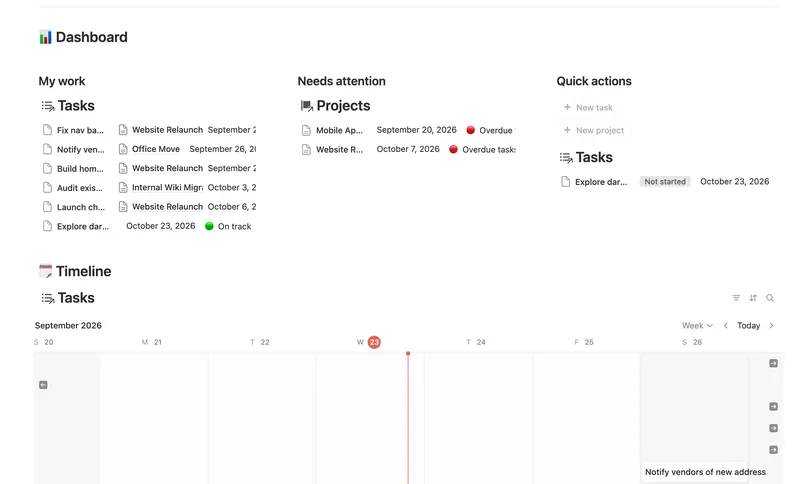
- 46 Task & Project Manager Break every Project into Tasks with real sub-items and dependencies, then let Progress, Health and a dependency-aware Timeline compute themselves — with a My work view that always shows exactly what's yours to do next. 3 db · 11 formulas · 2 buttons
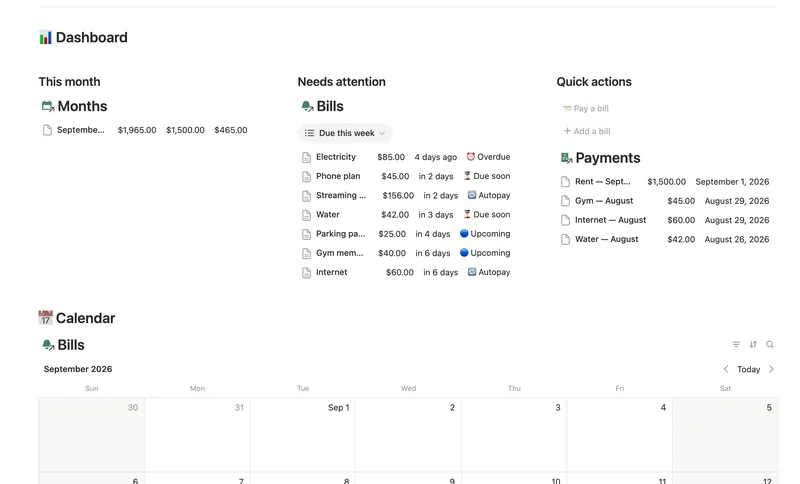
- 14 Bills & Due Dates Never miss a payment — every bill's next due date, its full payment history and which account it drains, computed automatically instead of retyped every cycle. 5 db · 11 formulas · 2 buttons
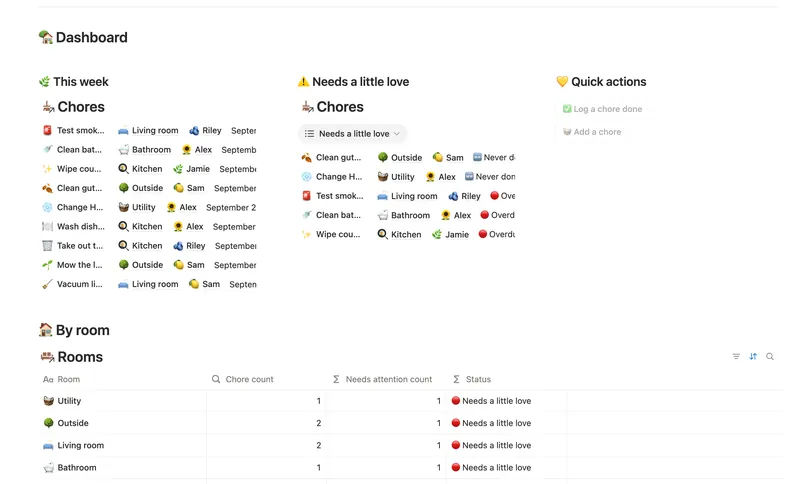
- 15 Household Hub Keep the household running without anyone having to remember everything — chores stay assigned and on schedule, and a glance at the dashboard shows what could use a little love today. 4 db · 12 formulas · 2 buttons
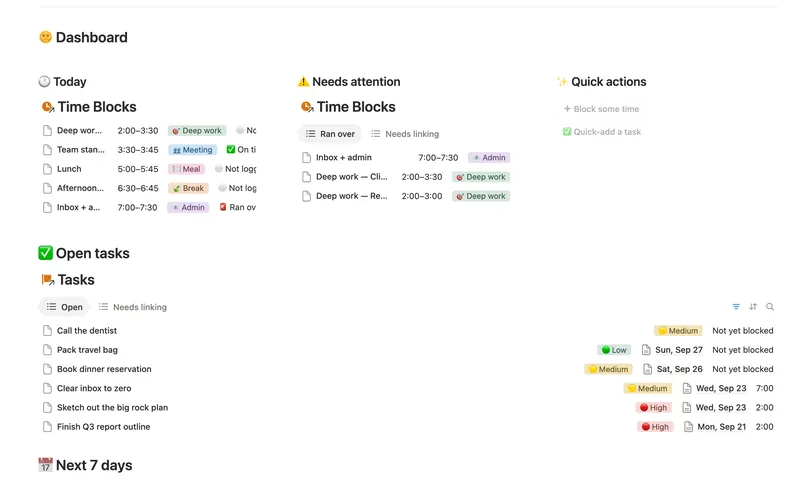
- 02 Daily Planner & Time Blocks Block your day into real Start/End times, keep tasks tied to the hour you meant to do them, and see — gently, never guiltily — whether today actually went the way you planned it. 3 db · 6 formulas · 2 buttons
§ The Bundle
Build it once, or start from a template
50 Notion templates, $197 value, $47 once.
One-time payment · Works on Notion Free · Instant Library access