
Updated Sep 27, 2026
How to Use Notion for Beginners: A First-Week Plan
Start with one page in Notion, not a system. Type notes into it as plain text, add a database only once you have a real list to sort, and skip templates copied from someone else's look until you know what you need. That's how to use Notion for beginners — one page that works, before five that don't.
How do I start using Notion?
Open a blank page and leave it blank. Notion doesn't ask you to pick a structure up front — that's what beginners get backwards, hunting for the "right" setup before they've written anything down. Type a running list of tasks as plain text first. Only once that list is long enough to check off, sort, or hide finished items does it earn a database.
The Free plan is enough for this. It gives one person unlimited pages and blocks, so there's no meter running while you experiment, and none of the pages-blocks-databases-properties-views mechanics this guide covers are held back until you pay. The Notion Free plan limits guide covers exactly where the real limits sit — mostly around file size and multiple full members, not around anything a single person building their own system for personal use will hit in week one.
The mental model: pages, blocks, databases, properties, views
Every notion guide for beginners should start here, because the five words above are the entire vocabulary. Get them straight and everything else is just arranging furniture.
A page is a container. Blocks are the units inside it — a line of text, an image, a to-do, a table, a divider. Notion's own description is direct: every page is a stack of blocks combined however you want, and any block can turn into a different kind of block later. That's why a bullet point you typed on day one can become a heading on day five without retyping it.
A database is a special block that holds many pages instead of one. Notion describes it as something closer to a filing cabinet than a spreadsheet: each row is its own page, and can be opened into a full page of its own. Properties label every row in that database, such as a Status, a Due date, or a Priority, letting you filter and sort instead of scrolling and reading. A view is a way of looking at the same rows: as a table, a board grouped by Status, a calendar keyed to a date property, a list, or a gallery of cards. Same data, five different windows onto it, and adding a new view never changes or duplicates the underlying rows.
To create your first database, type /database on any page, or start a new page and choose Table under "Get started with." Either way, start with three or four properties, such as a title, a Status and a Due date, and add more only when you actually reach for one that doesn't exist yet.
How do pages and sub-pages fit together?
A page can hold other pages inside it, nested as deep as you want — Notion has no folder system; nesting is the folder system. The sidebar surfaces whatever you've starred as a favorite, so you don't have to hunt through that nesting to get back to something.
How to use Notion to organize your life, day by day
A first week that actually sticks is narrower than most guides suggest. Here's a day-by-day version built to end with one real thing in daily use, not a half-finished vision of one:
- Day 1 — write, don't build. Make one page and dump your actual running list of tasks into it as plain text. No database, no properties, nothing to configure. The goal is just getting your stuff out of your head and into Notion.
- Day 2 — turn that list into your first database. Start fresh with
/databaseon the same page, re-type yesterday's list into it as rows, and give it three properties: Status (a select, with a few options like Not started, In progress, Done), Due date, and nothing else yet. - Day 3 — add a second view before you add a second database. Create a Board view of the same table, grouped by Status, so you can see everything as columns instead of a flat list. This is usually the moment a task list starts to feel like a real system, and it costs zero new setup: it's the same rows, viewed differently.
- Day 4 — add one relation, and only one. Once you have a second thing worth connecting a task to (a Project, a Client, a habit), link the two databases with a relation property. Resist adding a relation on day one for something you don't have yet; an empty Projects database linked to an empty Tasks database is exactly the kind of scaffolding that makes people quit before they've logged anything real.
- Day 5 — duplicate one finished system and compare. Open a template built around the same shape you just hand-built, such as a Weekly Planner or Daily Planner, and see what a version with the progress bars, the extra views and the linking already wired up looks like next to your own. Notion's own Marketplace, in the sidebar, has free templates too; the difference with the four here is the relations and formulas are already wired end to end, not just the layout. Keep whichever pieces you'd actually use; skip the rest.
Notion tips for beginners: the shortcuts worth learning early
Five keyboard shortcuts cover almost everything you'll do in your first week. Everything else can wait until you actually need it.
| Action | Mac | Windows |
|---|---|---|
| New page | Cmd + N | Ctrl + N |
| Open the block menu (headings, lists, to-dos, databases…) | Type / | Type / |
| Turn a line into a to-do checkbox | Cmd + Option + 4 | Ctrl + Shift + 4 |
| Turn a line into a bulleted list | Cmd + Option + 5 | Ctrl + Shift + 5 |
| Jump to a page you've opened recently | Cmd + P | Ctrl + P |
The slash command matters most. Typing / anywhere and then the name of what you want (table, toggle, callout, divider) is faster than hunting through a menu, and it works the same way for a single checkbox or a whole database. See Notion's own keyboard shortcuts reference for the full list once these five feel automatic.
The beginner mistakes that make people quit Notion
Almost nobody quits Notion because it's missing a feature. They quit because week one asked more of them than it should have:
- Over-building before using. Designing a "perfect" dashboard, icons and cover images before a single real task lives inside it. A plain page you use daily beats a beautiful one you built once and never opened again.
- Too many databases, too early. Splitting Tasks, Projects, Goals, Habits and Notes into five separate databases in week one, before any of them has enough rows to need splitting. One database with good properties and a couple of views does most of what five empty ones promise, and it's easier to keep up with.
- Copying someone else's aesthetic setup instead of their structure. A screenshot of someone's color-coded dashboard shows you their icons and their cover photo, not the relations and formulas underneath doing the actual work. Copy the mechanism, how their tasks link to their projects, not the visual skin, and check what a template's own how-it-works explanation claims before assuming a look means a system.
If any of these sound familiar from a Notion setup you already abandoned, the fix usually isn't a better plan. Learning how to use Notion effectively mostly comes down to fewer databases and more actual days of use before adding the next one.
Is Notion good for personal use on the Free plan?
Yes. As of September 2026, for one person, Notion's Free plan costs nothing, doesn't expire, and includes unlimited pages and blocks, uploads up to 5 MB per file, and up to 10 guests you can invite to specific pages with view, comment, or edit access. Databases, relations, properties and the view types used above (table, board, calendar, list and gallery) all work identically on Free and on every paid tier; nothing about the mechanics in this guide is held back until you pay. (Chart, a separate database view type, is capped at one active chart on Free.) The things Free actually limits (more version history, more guests, a second full member without a shared page cap) are collaboration and storage features a single person won't hit in week one, or for a long while after.
Where to go once week one works
Once your one database has real rows and a view or two you check, the next step is almost never a sixth database — it's connecting the one you have to the parts of your life it's still missing. The Notion Life OS guide covers what that looks like once a single task list has grown into several connected areas, and how to build a full dashboard covers arranging views, buttons and callouts onto one page once you're checking more than one system daily.
If you'd rather start from something already built than assemble it property by property, the Second Brain and Habit Tracker templates are two of the 50 in the Templitize Bundle, each built from exactly the pages-blocks-databases-properties-views mechanics above, already wired up. The Bundle is $47 once, works on Notion's Free plan, with lifetime updates — worth a look once you know what you'd actually use, not before.
Related templates
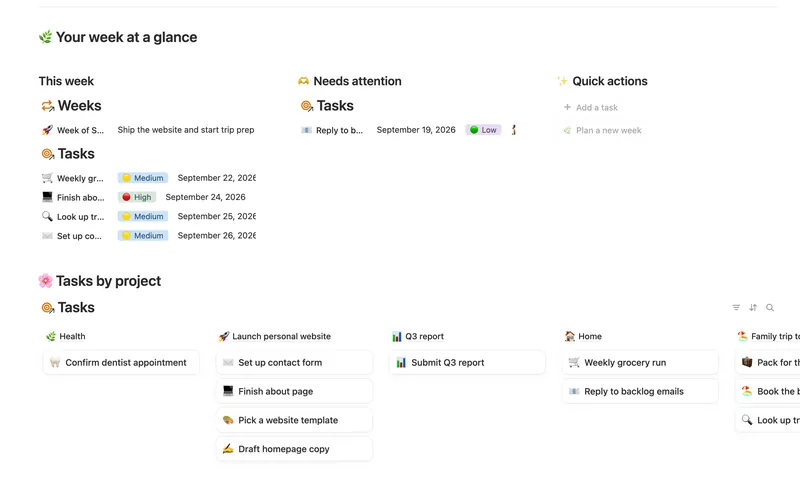
- 01 Weekly Planner Plan your week around what actually matters, connect every task to the project or area it belongs to, and close each week with a gentle review — progress that computes itself, no guilt, no spreadsheet. 3 db · 8 formulas · 2 buttons
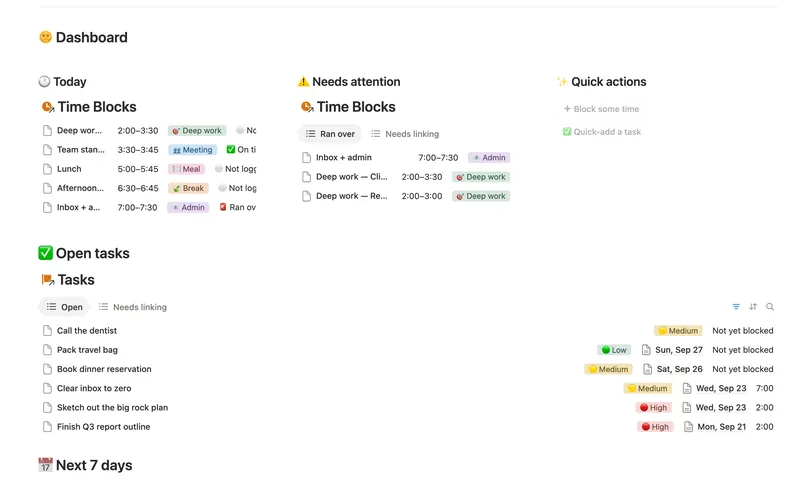
- 02 Daily Planner & Time Blocks Block your day into real Start/End times, keep tasks tied to the hour you meant to do them, and see — gently, never guiltily — whether today actually went the way you planned it. 3 db · 6 formulas · 2 buttons
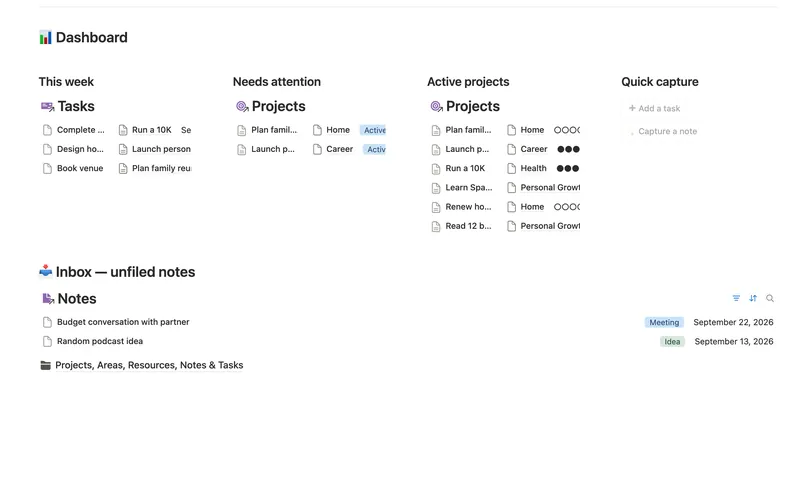
- 25 Second Brain (PKM) Capture everything into Tasks and Notes, file it against Projects, Areas and Resources, and watch Progress, Next due and Health roll up two hops — from a single checked box to a real picture of what's on track and what's stalled. 5 db · 10 formulas · 2 buttons
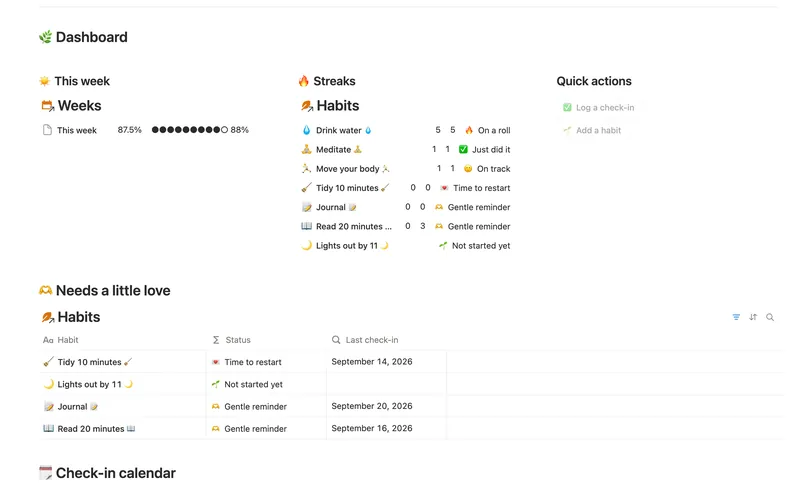
- 04 Habit Tracker Check off your habits day by day and watch streaks and a weekly score build themselves — with a gentle nudge, never a guilt trip, toward whatever needs a little love. 3 db · 13 formulas · 2 buttons
§ The Bundle
Build it once, or start from a template
50 Notion templates, $197 value, $47 once.
One-time payment · Works on Notion Free · Instant Library access