
Updated Sep 27, 2026
How to Set Up GTD (Getting Things Done) in Notion
A Notion GTD setup turns David Allen's five-step method, capture, clarify, organize, reflect, engage, into real databases: an Inbox for anything unsorted, Next Actions tagged by context, a Projects database for multi-step outcomes, a Waiting For list, and a Someday/Maybe holding pen, reviewed together once a week.
How do the five GTD steps map onto a Notion GTD system?
Getting Things Done comes from David Allen's book of the same name, first published in 2001 and revised in 2015. It doesn't assume any particular tool, GTD predates Notion by well over a decade, but each of its five steps has a fairly literal database, property or view once you build it out:
| GTD step | What it actually means | Notion mechanic |
|---|---|---|
| Capture | Get everything out of your head and into one place | An Inbox database, one row per item, nothing required but a title |
| Clarify | Decide what each item is and whether it's actionable | A Status property you set by hand while triaging the Inbox |
| Organize | File it where it belongs | Status becomes Next Action, Waiting For, or Someday/Maybe; a Project relation links it to an outcome |
| Reflect | Review at the right altitude, on a schedule | A weekly review checklist, run against saved views |
| Engage | Do the next action in front of you | Next Actions filtered by Context, so you're choosing from a short, relevant list |
That's the whole system in one table; the rest of this guide builds each row of it.
How do I set up a Notion GTD inbox?
The Inbox is the only database that has to be frictionless, since its entire job is catching things before they're forgotten, not organizing them correctly on the way in.
- Create an Inbox database (or an Actions database with an Inbox status, see below) with a Title and a Captured date property. Nothing else is required to add a row.
- Add a Days in inbox formula, below, so anything sitting untouched becomes visible without you having to remember to check.
- Build a default table view sorted by Captured, ascending, so the oldest unprocessed item is always the one at the top.
- During your clarify pass, change each item's Status and move it out of the raw Inbox view entirely. GTD calls the goal "processing to zero", an empty Inbox, not a full one that's merely sorted.
if(empty(prop("Captured")), 0, dateBetween(today(), prop("Captured"), "days"))In practice, most people run Inbox, Next Actions, Waiting For and Someday/Maybe as one Actions database with a single Status property, not four separate ones: 📥 Inbox, ⚡ Next Action, 🕰️ Waiting For, 🌙 Someday/Maybe, ✅ Done. One click moves an item through the whole workflow, and every view below is that same database filtered differently. The Idea Inbox template runs the same single-database, one-Status-property pattern for a lighter capture-and-triage system, though its own funnel (New, Considering, Doing now, Someday, Made it happen, Let it go) is built for loose ideas, not GTD's Inbox-through-Done stages.
What does a GTD Notion workflow look like day to day?
Once something is out of the Inbox and clarified as actionable, it becomes a Next Action, GTD's term for the single physical next step, not the whole project. Two properties carry the daily workflow:
- Context (multi-select): the tool, place or energy an action needs, @Calls, @Computer, @Errands, @Home, @Office, @Anywhere. A board view grouped by Context shows exactly what's doable right now, filtered to what's plausible from a waiting room versus what needs your desk.
- Project (relation, optional): links the action to a Project row, when it belongs to one. Plenty of Next Actions don't; GTD is explicit that a lot of real work is a single standalone action with no project behind it.
A GTD Notion workflow lives almost entirely in one view: filter Status to ⚡ Next Action, group by Context, and pick the top item that matches where you actually are. Context and a short list do the filtering GTD asks for; priority doesn't need its own property.
Where do Projects and Waiting For live in a Notion GTD setup?
Projects are GTD's name for anything needing more than one action to finish. Give each one a Title, an Outcome (what done looks like, in one line), and a Status. Relate your Actions database to it, and a rollup counting open, linked Actions shows whether a Project actually has a next action queued, GTD's own diagnostic for a stalled project. The Task & Project Manager template runs this same relation, with dependencies and a Timeline layered on top, for projects that need it.
Waiting For tracks anything you're blocked on someone else finishing. Give it a Waiting on text property (who) and a Waiting since date, then compute how long it's actually been:
if(empty(prop("Waiting since")), 0, dateBetween(today(), prop("Waiting since"), "days"))A Waiting For view, filtered to that Status and sorted by days waiting, descending, turns "did I ever hear back from Sam?" into something the system tracks instead of your memory.
Someday/Maybe is the last bucket: interesting, not committed. Same database, same Status property, just a value that means "not now" without meaning delete. It rarely needs its own formula, just a look during the weekly review to see if anything is ready to move to Next Action.
Is there a ready-made Notion GTD template?
Not a single one under that name in the Templitize bundle. The building blocks above fit in an afternoon: one database, five Status values, one Context property, and two short formulas. The Idea Inbox and Task & Project Manager templates already cover half of it, capture-and-triage on one side, Projects with real dependencies on the other. For the review habit, the Weekly Planner template's Weeks database and guilt-free Status wording are a reasonable frame to borrow. If fast capture with a due date is the whole job, Notion vs. Todoist covers when a dedicated task app fits better than building this in Notion at all.
How does GTD fit with PARA in Notion?
A Notion GTD PARA setup works because the two solve different problems and layer cleanly on top of each other rather than competing for the same job.
| GTD | PARA | |
|---|---|---|
| What it organizes | The state of a task or idea right now | Where information and projects live long-term |
| Core question | What's the next physical action? | How soon do I need to act on this? |
| Time horizon | Right now, this list | Ongoing filing |
| Notion mechanic | A Status funnel: Inbox → Next Action → Done | Nested relations: Task → Project → Area |
GTD's Inbox-to-Next-Action funnel handles the moment-to-moment workflow; PARA gives the Projects, reference material and Areas that funnel points into. Second Brain in Notion: the PARA method covers the Areas, Projects and Resources side in depth, and the Second Brain template is a reasonable place to keep those once they're past the capture stage.
Capture options: buttons, mobile, and Web Clipper
An Inbox is only as good as how little friction it takes to add something to it. Three real capture paths, as of September 2026:
- A button. A dashboard button set to Add page to your Inbox database, with Captured set to
@today, creates a blank row in one click on any plan. Notion's own documentation lists Add page to as a free action on every plan. The buttons guide covers what a button can and can't do, including the paid-only actions you don't need here. - The mobile app. Open your Inbox database and add a row directly. Notion's mobile widgets open existing pages; they don't create new ones — there's no home-screen widget for one-tap capture.
- Web Clipper. For a web page rather than a thought, Notion's Web Clipper is a browser extension on Chrome and Safari, and works on mobile through the native share sheet. It asks which page or database to save into every time, so a clipped article lands straight in your Inbox instead of a separate bookmarks pile.
What should a Notion weekly review actually cover?
GTD's weekly review is the step that keeps the whole system honest. Skip it and Waiting For quietly turns into a place things go to be forgotten a second time, more organized than the original inbox but just as stalled.
- Process the Inbox to zero: give every row a real Status.
- Scan Waiting For, sorted by days waiting: anything worth a nudge today?
- Check every Project for at least one open Next Action; a Project with none is stalled by GTD's own definition.
- Skim Someday/Maybe: has anything become real enough to promote to a Next Action?
- Look ahead at your calendar for the coming week so upcoming commitments generate their own Next Actions before they arrive.
Run it on the same day every week and it takes ten minutes. Skip it for a month and it takes an hour, plus the trust in the system you lose in the meantime.
Building this from scratch is one database, a handful of properties, and the two formulas above. If you'd rather start from something with the Project relation and dependency handling already built, the Task & Project Manager and Idea Inbox templates are both part of the Templitize Bundle, 50 templates for $47 once, on Notion's Free plan with no upgrade required.
Related templates
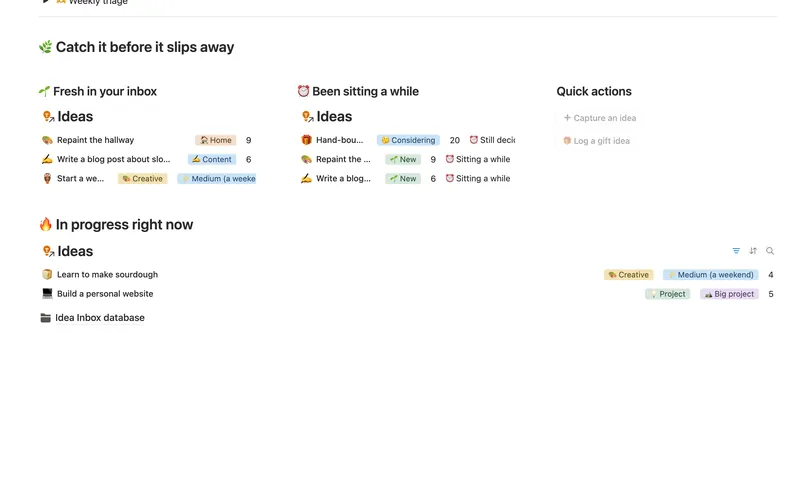
- 07 Idea Inbox Catch every idea the moment it lands, then gently triage it each week — so nothing brilliant slips away and nothing half-baked clutters your day. 1 db · 4 formulas · 2 buttons
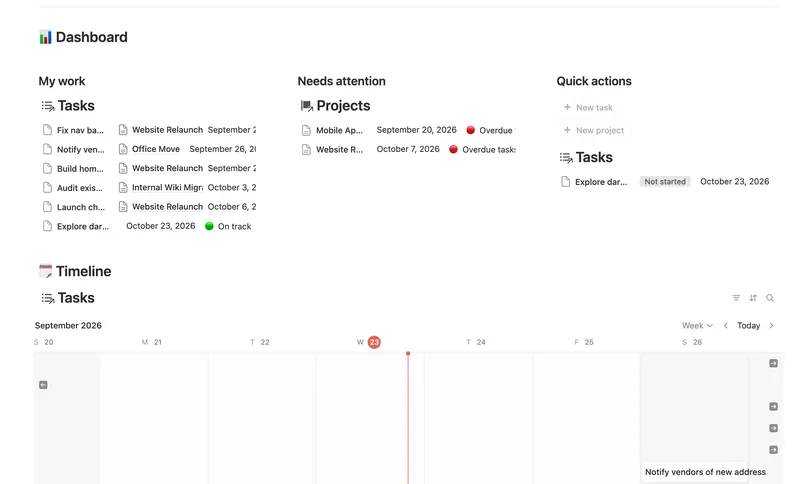
- 46 Task & Project Manager Break every Project into Tasks with real sub-items and dependencies, then let Progress, Health and a dependency-aware Timeline compute themselves — with a My work view that always shows exactly what's yours to do next. 3 db · 11 formulas · 2 buttons
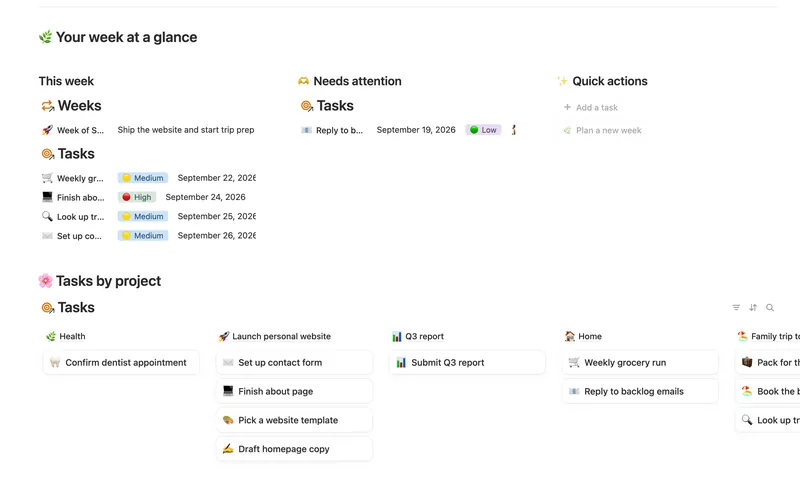
- 01 Weekly Planner Plan your week around what actually matters, connect every task to the project or area it belongs to, and close each week with a gentle review — progress that computes itself, no guilt, no spreadsheet. 3 db · 8 formulas · 2 buttons
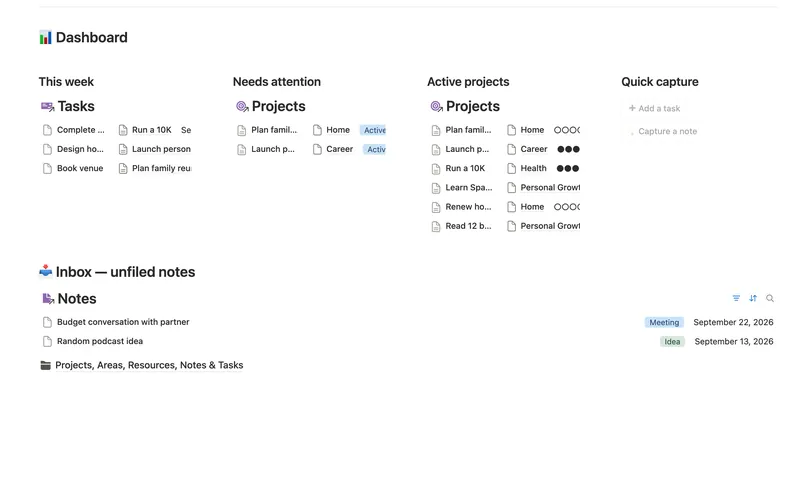
- 25 Second Brain (PKM) Capture everything into Tasks and Notes, file it against Projects, Areas and Resources, and watch Progress, Next due and Health roll up two hops — from a single checked box to a real picture of what's on track and what's stalled. 5 db · 10 formulas · 2 buttons
§ The Bundle
Build it once, or start from a template
50 Notion templates, $197 value, $47 once.
One-time payment · Works on Notion Free · Instant Library access